Showing posts with label Row. Show all posts

Tuesday, February 14, 2023

PowerApps: Re-order Items In Gallery

Hello Friends,
Welcome back with another post on PowerApps. Today, we will learn about re-ordering feature in gallery. Surprised, as there is no such built-in feature in gallery. right, therefore, we will build the logic here.
We will apply re-ordering in 2 ways-
  1. Swap the position with Previous / Next item. Example: Swap 2nd position item with 3rd position item or vice-versa.
  2. Position the item at a particular number. Example: Bring the 10th position item to 2nd position.
Let's start.
  1. Open the PowerApps maker portal and create a new app and give a suitable name.
  2. Now click on App and choose the OnStart property and add logic for creating a collection.
    1. ClearCollect(collSampleData,
      {SeqNo:1,Title:"Mr",FirstName:"Aaron",LastName:"Finch"},
      {SeqNo:2,Title:"Mr",FirstName:"Sanjiv",LastName:"Verma"},
      {SeqNo:3,Title:"Mr",FirstName:"Robert",LastName:"Rosch"},
      {SeqNo:4,Title:"Ms",FirstName:"Aakriti",LastName:"Singh"},
      {SeqNo:5,Title:"Ms",FirstName:"Reshma",LastName:"Sharma"},
      {SeqNo:6,Title:"Mr",FirstName:"Kundan",LastName:"Gupta"},
      {SeqNo:7,Title:"Ms",FirstName:"Rajni",LastName:"Chugh"},
      {SeqNo:8,Title:"Ms",FirstName:"Ketty",LastName:"Woods"},
      {SeqNo:9,Title:"Mr",FirstName:"Bob",LastName:"Hamilton"},
      {SeqNo:10,Title:"Ms",FirstName:"Mary",LastName:"Christina"}
      );
  3. Now click on elipses (...) of App and select Run OnStart. It will initialize the collection.
  4. Now click on Insert and search for blank flexible height gallery.
  5. Select this control to add on screen. It will ask you the Data source. Select the collection collSampleData we have created above.
  6. Now resize the app to cover the entire screen or resize as per your application requirements. (optional).
  7. Rename the ggallery as Gallery_ReOrder.
  8. Choose the TemplateSize property and set it's value as 50. Then set the TemplatePadding to 0.
  9. It's time to add controls in this template. Click on Edit Template icon.
  10. Start adding control and set properties-
  11. Icon - Arrow up
    1. Name: IconUp
    2. X: 0
    3. Y: 0
    4. Width: 20
    5. Height: Parent.TemplateHeight
    6. Padding: Top / Bottom / Left / Right: 0
    7. Visible: ThisItem.SeqNo <> First(Sort(collSampleData,SeqNo,Ascending)).SeqNo
    8. OnSelect: 
      1. Select(Parent);
        Set(vrCurrentSeq,Value(ThisItem.SeqNo));
        Patch(collSampleData,ThisItem,{SeqNo:0});
        Patch(collSampleData,First(Filter(collSampleData,SeqNo=vrCurrentSeq-1)),{SeqNo:vrCurrentSeq});
        Patch(collSampleData,First(Filter(collSampleData,SeqNo=0)),{SeqNo:vrCurrentSeq-1});
    9. The concept used here is capture the current item sequence. The get the previous item and set it's seq equal to current one. Then set the current selected item sequence to 1 less than that of current sequence.
  12. Icon - Arrow down
    1. Name: IconDown
    2. X: IconUp.X+IconUp.Width
    3. Y: IconUp.Y
    4. Width: IconUp.Width
    5. Height: IconUp.Height
    6. Padding: Top / Bottom / Left / Right: 0
    7. Visible: ThisItem.SeqNo <> First(Sort(collSampleData,SeqNo,Descending)).SeqNo
    8. OnSelect: 
      1. Select(Parent);
        Set(vrCurrentSeq,Value(ThisItem.SeqNo));
        Patch(collSampleData,ThisItem,{SeqNo:0});
        Patch(collSampleData,First(Filter(collSampleData,SeqNo=vrCurrentSeq+1)),{SeqNo:vrCurrentSeq});
        Patch(collSampleData,First(Filter(collSampleData,SeqNo=0)),{SeqNo:vrCurrentSeq+1});
    9. The concept used here is capture the current item sequence. The get the next item and set it's seq equal to current one. Then set the current selected item sequence to 1 plus than that of current sequence.
  13. Text label
    1. Name: LblSeqNo
    2. X: IconDown.X+IconDown.Width
    3. Y: IconDown.Y
    4. Width: 50
    5. Height: IconDown.Height
    6. Text: ThisItem.SeqNo
    7. Align: Align.Right
  14. Text label
    1. Name: LblTitle
    2. X: LblSeqNo.X+LblSeqNo.Width
    3. Y: LblSeqNo.Y
    4. Width: 70
    5. Height: LblSeqNo.Height
    6. Text: ThisItem.Title
  15. Text label
    1. Name: LblFirstName
    2. X: LblTitle.X+LblTitle.Width
    3. Y: LblTitle.Y
    4. Width: 150
    5. Height: LblTitle.Height
    6. Text: ThisItem.FirstName
  16. Text label
    1. Name: LblLastName
    2. X: LblFirstName.X+LblFirstName.Width
    3. Y: LblFirstName.Y
    4. Width: 150
    5. Height: ILblFirstName.Height
    6. Text: ThisItem.LastName
  17. Drop down
    1. Name: ddSortOrder
    2. X: LblLastName.X+LblLastName.Width
    3. Y: LblLastName.Y
    4. Width: 150
    5. Height: LblLastName.Height
    6. Default: ThisItem.SeqNo
  18. For Items property, first we will add below code in App >> OnStart (after the collSampleData collection creation)
    1. Set(vrCurrentSeq,First(Sort(collSampleData,SeqNo,Ascending)).SeqNo);
      ClearCollect(collSequence,Sequence(CountRows(collSampleData),vrCurrentSeq));
    2. Now click on elipses (...) of App and select Run OnStart. It will initialize the collection collSequence. 
  19. Now set the Items property of ddSortOrder as collSequence.
  20. Save the app.
  21. The remaining part is to write the login for OnChange property of ddSortOrder. It iis little bit complex. Here we need to check if the new position of item is greater than the current position or less. Based upon that, we need to reposition the items. For example, see the below screenshot.
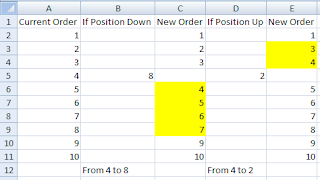
  22. If we are changing order from 4 to 8 then Yellow highlighted items order also need to be updated. Similarly, if we are changing order from 4 to 2, then Yellow highlighted items order also need to be updated.
  23. Let's write the logic for ddSortOrder >> OnChange property.
    1. Select(Parent);
      Set(vrCurrentSeq,Value(ThisItem.SeqNo));
      Set(vrDesiredSeq,Value(ddSortOrder.Selected.Value));
      Patch(collSampleData,ThisItem,{SeqNo:0});
      If(vrDesiredSeq>vrCurrentSeq,
          ClearCollect(collNewSequence,Sequence(vrDesiredSeq-vrCurrentSeq,vrCurrentSeq+1));
          ForAll(collNewSequence,Patch(collSampleData,First(Filter(collSampleData,SeqNo=Value)),{SeqNo:Value-1}));,
          ClearCollect(collNewSequence,Sequence(vrCurrentSeq-vrDesiredSeq,vrDesiredSeq));
          ForAll(collNewSequence,Patch(collSampleData,First(Filter(collSampleData,SeqNo=Value)),{SeqNo:Value+1})););
      Patch(collSampleData,First(Filter(collSampleData,SeqNo=0)),{SeqNo:vrDesiredSeq});
  24. Last, to give a beautiful appearance to the grid, we will fill a background color to the alternate rows. For this, update the TemplateFill property of GalleryReOrder as below.
    1. If(Mod(ThisItem.SeqNo,2)=0,RGBA(222,222,222,1),RGBA(0,0,0,0))
  25. Save the app, publish and Run/Play.
  26. If you play this app and try to change the order, you will find that the order gets changed but the grid is not showing data properly. The reason is that, we had not applied the Sorting on grid datasource.. Edit the app and choose the gallery GalleryReOrder >> Items property. Here you will find that the datasource collSampleData is directly associated. Change it to -
    1. Sort(collSampleData,Value(SeqNo),Ascending)
  27. Now, save/publish and Run/Play.
  28. I swapped order 3 to 2 by clicking Up icon and the results are-
    1. Before
    2. After
  29. Now, I am swapping order 9 to 10 by clicking Down icon and the results are-
    1. Before
    2. After
  30. Now, I will reorder the item of position 7 to position 3 using drop down and the results are-
    1. Before
    2. After

With this, I am concluding this post.
Happy Coding !!!
Will see you again with some new topics.

Stay Safe !
Stay Healthy !

Sunday, January 16, 2022

Power Automate: Useful HTTP Request Actions Part 4

 Hello Friends,

Welcome back with another post on Power Automate. This post is in continuation to one of my earlier post(s) on different ways we can use HTTP request action (Send an HTTP request to SharePoint) in Power Automate to get different kind of information. I will be adding more and more options in this post from time to time. Below is the link of earlier post(s)-

  1. Power Automate: Useful HTTP Request Actions Part 1
  2. Power Automate: Useful HTTP Request Actions Part 2
  3. Power Automate: Useful HTTP Request Actions Part 3
Today, we will learn about below ones-
  1. Create SharePoint List
  2. Create Column(s)
  3. Update Column(s) Display Name
  4. Read Excel And Insert Data
Sometimes, there is a requirement to read an uploaded excel and create List for that in SharePoint and insert items in that list. So, either you need to do this activity manually OR you can use Power Automate to achieve the same. We are discussing Power Automate option here.
  1. Our process will divide into following steps-
    1. Create SharePoint List
    2. Create/Rename Columns In List
    3. Read Excel from Document Library
    4. Add Items from Excel into SharePoint list
Let's start-
  1. Create SharePoint List-
    1. First we will create custom SharePoint list named "SharePointListTemplateIDs" using Power Automate.
    2. Add an action "Send HTTP request to SharePoint".
    3. The Body template used is-
    4. {
      
      	"__metadata":{ "type":"SP.List" },
      	"AllowContentTypes":true,
      	"BaseTemplate":100,
      	"Title":"SharePointListTemplateIDs",
      
      	"Description":"This list contains the IDs of different types of lists/libraries we can create."
      
      }
      
    5. BaseTemplate is the Id that represents to a  List type. 100 is for Custom list. Rest are as below-
    6. This will create list in SharePoint.
  2. Create/Rename Columns In List-
    1. We will create/rename below columns-
      1. Name: (We will not be creating this column. We will use Title Column and will rename it to Name)
      2. TemplateID: (Type: Number; Required: true) 
      3. Description: (Type: Text (Multiline); Required: false)
    2. For this, we will follow below steps-
      1. Rename "Title" to "Name"
      2. Create "TemplateID"
      3. Rename "TemplateID" to "Template ID"
      4. Create "Description"
    3. Inputs are-
      1. Rename "Title" to "Name"
      2. Create "TemplateID"
      3. Rename "TemplateID" to "Template ID"
      4. Create "Description"

  3. Read Excel from Document Library-
    1. Now we will read the Excel file. We had uploaded the file in Documents library. This file contains the Name/TemplateID/Description columns as shown above in the post.
  4. Add Items from Excel into SharePoint List-
  5. That's all. Now save the flow and execute it.
  6. Here's the result-
  7. Please feel free to sent me your queries or any functionality that you want to achieve and currently not able to do so. I would be happy, if would be able to provide it's solution.
  8. Next Post Link-
    1. Coming soon...
With this, I am concluding this post.
Happy Coding !!!
Will see you again with some new topics.

Stay Safe !
Stay Healthy !

Friday, September 24, 2021

PowerApps: Nested Gallery

Hello Friends,

Welcome back with another post on PowerApps. We are starting a series of posts in which we will learn about-

  1. Nested Gallery
  2. Expand / Collapse (individual master child record set)
  3. Expand All / Collapse All
  4. Alternate row color
Below is the overview of functionality, we are going to discuss-

We will learn all these features one by one. So let's start-

  1. Before starting, we need a SharePoint List having below columns-
    1. OrderID
    2. ItemName
    3. ItemQuantity
  2. We have kept the list simple to just show the functionality.
  3. Now add 5-6 orders with each having multiple items.

  4. Now click on App Launcher (grid of 9 dots at top left corner) and click on PowerApps to open the PowerApps maker platform.
  5. I am creating PowerApps in Tablet mode so that the display of nested gallery should be clear.
  6. First of all, add connection with SharePoint list. For this, click on Data icon from left navigation menu, click on Add Data. Now select the SharePoint connector. Select the Site and then list "OrdersList".
  7.  
  8. Now, add a button at bottom right corner which will load the data from SharePoint to local collection.
  9. Click on Insert >> Button. Rename it btnLoadData. Set Text as "Load Data".
  10. Add below function on "OnSelect" property-
  11. ClearCollect(OrdersListCollection,GroupBy(OrdersList,"OrderID","ListItemDetails"));
    
  12. This function will load the data from SharePoint list into a local collection "OrdersListCollection" with grouping on OrderID. The grouped data will reflect under column "ListItemDetails". It means, the local collection will have two column-
    1. OrderID
    2. ListItemDetails


  13. Now we will add gallery control on screen. For this, choose the gallery of type "Blank flexible height". The reason behind this is that we will expand the item based on the number of child items.

  14. Set the-
    1. Height property of gallery as "Parent.Height"
    2. Width property as "1000"
    3. Items property as "OrdersListCollection"
  15. Now click on the Edit icon of item template as shown in below screenshot-
  16. Add a label and set it's-
    1. Width as 400
    2. Position X as 0
    3. Position Y as 0
    4. FontWeight as Bold
    5. Height as 50
    6. Fill as RGBA(241, 244, 249, 1)
    7. Rename it as lblOrderID
    8. Text as Concatenate("Order ID: ",Text(ThisItem.OrderID))
  17. Add one more label and set it's-
    1. Width as 585
    2. Position X as 400
    3. Position Y as 0
    4. FontWeight as Bold
    5. Height as 50
    6. Fill as RGBA(241, 244, 249, 1)
    7. Rename it as lblCustomer
    8. Text as Concatenate("Customer: ",LookUp(OrdersList,OrderID = ThisItem.OrderID,'Created By'.DisplayName))

  18. This will show the Order ID and the Customer name. Rename this gallery as "GalleryOrderMaster".
  19.  Now we will add one more gallery, which will show the Items associated with that particular Order ID. Once again, click on edit icon as shown in Step 20 and add another gallery of type "Blank flexible height". Rename it as "GalleryItemsDetails".
  20. Set-
    1. Position X as 50
    2. Position Y as 50 (you may set it dynamic by specifying lblOrderID.Height + lblOrderID.Y)
    3. Width as 885
    4. Height as 100 (we will make it dynamic later in code)
    5. Items as ThisItem.ListItemDetails
  21. Now we will add two labels to show the ItemName and ItemQuantity.
  22. Add first label and set-
    1. Name as lblItemName
    2. Text as ThisItem.ItemName
    3. Position X as 0
    4. Position Y as 0
    5. Width as 300
    6. Height as 50

  23. a
  24. Similarly, add another label and set-
    1. Name as lblItemQuantity
    2. Text as ThisItem.ItemQuantity
    3. Position X as 300
    4. Position Y as 0
    5. Width as 300
    6. Height as 50

  25. This way you can show nested items. The basic part is complete. Now, if you execute the PowerApps, you will find that the height of nested gallery is fixed. So, we will make it dynamic. For this, set the Height of GalleryItemDetails as "(CountA(ThisItem.ListItemDetails.ItemName)+1)*50". We have added +1 to make sure there should be no scrollbar.

  26. This way we can achieve nested gallery functionality. In next post, we will discuss about Expand / collapse feature in nested gallery.
  27. UPDATE:
    1. Some times, you may find that if the data in nested gallery is too large, then the behavior of parent-nested gallery becomes abnormal.

    2. As you can see, Parent Items (Kamal, Manoj...) are inline with Child Items (Item-491, Item-492...). (Below is the dynamic height code which you will read in my next articles of this series).
    3. The Height code is-
    4. If(
          ThisItem.OrderID = ParentGallery.Selected.OrderID,
          (CountA(
              Filter(
                  CollChild,
                  OrderID = ThisItem.OrderID
              ).ItemName
          ) + 1) * 50,
          0
      )
      
    5. To avoid this situation, we need to fix the height of child gallery upto a max limit. But the problem is that, there is Max Height property available for Gallery control.
    6. So, we have prepared a workaround to overcome this problem. We have Min function. We will make use of it.
    7.  Let's modify the code for Height (I am taking maximum height for child gallery as 400)-
    8. If(
          ThisItem.OrderID = ParentGallery.Selected.OrderID,
          Min(
              (CountA(
                  Filter(
                      CollChild,
                      OrderID = ThisItem.OrderID
                  ).ItemName
              ) + 1) * 50,
              400
          ),
          0
      )
      
    9. After implementing this code, the height of child gallery is set to maximum 400 as the calculated height was much greater than 400. Therefore, Min function gave 400 as output.
    10.   
    11. In case if the calculated height is less than 400, in that case, the Min function will gave the calculated value as output. 
With this, I am concluding this post.
Happy Coding !!!
Will see you again with some new topics.

Stay Safe !
Stay Healthy !