Showing posts with label Colour. Show all posts

Friday, October 22, 2021

PowerApps: Approval Flow (Component)

 Hello Friends,

Welcome back with another post on PowerApps. Sometimes, we require to show the approval flow of any request in pictorial representation.

Here a request has 5 level of approvals. We are trying to show below information for each approver- 

  1. Photo
  2. Name
  3. Designation
  4. Approval Status
    1. Approved: Green
    2. Pending: Orange
    3. Rejected: Red
    4. Skipped: Gray
    5. Not Started: White

There are several ways to show the information. It depends upon the requirement of the client as well as other factors. I have show above the initial 2 ways. Another one, we will try to create. 🙂

Basically, we have created a component here in PowerApps. The benefit of making this as component is that, any change required in design will make reflected everywhere. Secondly, it is purely dynamic. You may have 2/3/4... level approval. It will manage accordingly.

So, let's start-

  1. Open the PowerApps Development Environment. Then click on-
    1. Apps link from left navigation. 
    2. Components libraries (preview) from right panel.
    3. + New component library (preview) on top menu strip.
  2. Basically, there are 2 ways to create a component in PowerApps-
    1. Inside a particular app. The drawback is that scope of such components is restricted to that app only. You cannot re-use that component in other apps.
    2. In component library. The benefit of such components are available for use in all apps.
  3. So, here, we are creating Component library.
  4. Now, give a suitable name to this component library-
  5. Click on Create. It will create a library with this name and add a default blank component named Component1 in this library. The benefit of Component library is that you can create multiple component in a single library. For example, as we have seen 2 ways to create Approval Flow component in the first screenshot and here we are creating the 3rd way. It means we have created 3 types of component for same feature. So, we can create all these 3 components in a single library and choose as per our requirement in PowerApps. 

  6. Rename this component as "ApprovalComponentRoundImage". Set height of component as 200.
  7. Add a custom property of input type so that we can ask the screen to provide the approvers list.
    1. Display Name: Approvers List
    2. Description: Please provide list of approvers.
    3. Property type: Input
    4. Data type: Table
  8. Click on Create.
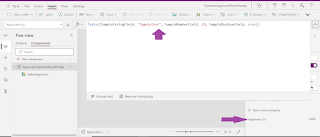
  9. It will create a custom property. Now click on this property and you will find a sample table in the function box.
  10. Replace this table with below one. This is the sample of the table which we will pass from screen-
  11. Now, add a Blank horizontal gallery-
    1. Name: GalleryApprovers
    2. Height: Parent.Height
    3. Width: Parent.Width
    4. Items: ApprovalComponentRoundImage.ApproversList
    5. TemplatePadding: 0
    6. TemplateSize: 200 (Do not change right now, we will change it later)
  12. Now click on edit pencil icon of gallery template so that we can add control to it.
  13. So, now, we have the sample data and we have the gallery. It's time to add controls to display the data.
  14. To display the Photo, we will use 3 controls-
    1. Circle
    2. Icon
    3. Image
  15. To display the Approval Status, we will use 1 control-
    1. Icon
  16. To display the Name and Designation, we will use 1 control for each value-
    1. Label
  17. For User Photo
    1. Add a circle. You will find circle control in Shapes section from left navigation menu >> + Insert >> Shapes.
      1. Name: PhotoCircle
      2. Height: 100
      3. Width: PhotoCircle.Height
      4. X:(GalleryApprovers.TemplateWidth-PhotoCircle.Width)/2
      5. Y: 0
      6. Fill: RGBA(230, 230, 230, 1)
    2. Now, add Icon of type Person-
      1. Name: PhotoIcon
      2. Height: PhotoCircle.Height*0.6
      3. Width: PhotoIcon.Height
      4. X:PhotoCircle.X + (PhotoCircle.Width - PhotoIcon.Width) / 2
      5. Y: (PhotoCircle.Height-PhotoIcon.Height)/2
    3. Now add an Image control-
      1. Name: PhotoImage
      2. Height: PhotoIcon.Height
      3. Width: PhotoIcon.Width
      4. X: PhotoIcon.X
      5. Y: PhotoIcon.Y
      6. RadiusBottomLeft: PhotoIcon.Height/2
      7. RadiusBottomRight: PhotoImage.RadiusBottomLeft
      8. RadiusTopLeft: PhotoImage.RadiusBottomLeft
      9. RadiusTopRight: PhotoImage.RadiusBottomLeft
    4. For Approval Status:
    5. Add an Icon (for now select Check(badge))-
      1. Name: ApprovalStatusIcon
      2. Height: PhotoCircle.Height*.3
      3. Width: PhotoCircle.Width*.3
      4. X: PhotoCircle.X+PhotoCircle.Width-ApprovalStatusIcon.Width
      5. Y: PhotoCircle.Y+PhotoCircle.Height-ApprovalStatusIcon.Height
    6. For Approver Name:
    7. Add a Label-
      1. Name: DisplayNameLabel
      2. Size: 16
      3. FontWeight: Bold
      4. Align: Center
      5. AutoHeight: true
      6. DisplayMode: View
      7. PaddingTop: 1
      8. PaddingBottom: 1
      9. PaddingLeft: 5
      10. PaddingRight: 5
      11. Width: GalleryApprovers.TemplateWidth
      12. X: 0
      13. Y: PhotoCircle.Y+PhotoCircle.Height
    8. For Approver Designation:
    9. Add a Label-
      1. Name: DesignationLabel
      2. Size: 16
      3. FontWeight: Normal
      4. Italic: true
      5. Align: Center
      6. AutoHeight: true
      7. DisplayMode: View
      8. PaddingTop: 1
      9. PaddingBottom: 1
      10. PaddingLeft: 5
      11. PaddingRight: 5
      12. Width: GalleryApprovers.TemplateWidth
      13. X: 0
      14. Y: DisplayNameLabel.Y+DisplayNameLabel.Height
    10. Final look of template:
    11. The basic designing has been completed. Now, we need to bind data to these controls. But, there is a problem. The approval status can be one of the below possible values-
      1. Not Started (we will display WHITE filled circle)
      2. Pending (we will display ORANGE filled circle)
      3. Rejected (we will display RED filled circle with white in the middle)
      4. Approved (we will display GREEN filled circle with white ✓ in the middle)
      5. Skipped (we will display GRAY filled circle)
    12. There are 2 ways to do it-
      1. Mention colors as static
      2. Make input properties for these status and assign it accordingly.
    13. We will opt for 2nd option.
    14. Therefore, create custom property respective to each approval status.

    15. Selected Colors are-
      1. Approved: Green
      2. Pending: Orange
      3. Rejected: Red
      4. Skipped: LightGray
      5. NotStarted: White
    16. Now click on ApprovalStatusIcon and choose the Fill property and update the colors as below-
    17. Switch(
          ThisItem.ApprovalStatus,
          "Not Started",
          ApprovalComponentRoundImage.NotStartedColor,
          "Pending",
          ApprovalComponentRoundImage.PendingColor,
          "Approved",
          ApprovalComponentRoundImage.ApprovedColor,
          "Rejected",
          ApprovalComponentRoundImage.RejectedColor,
          "Skipped",
          ApprovalComponentRoundImage.SkippedColor
      )
      

    18. Update the Color property as (The reason is we have to display the icon type only if it is Approved/Rejected. For all other cases, we will display only filled circle)-
    19. Switch(
          ThisItem.ApprovalStatus,
          "Not Started",
          ApprovalComponentRoundImage.NotStartedColor,
          "Pending",
          ApprovalComponentRoundImage.PendingColor,
          "Approved",
          Color.White,
          "Rejected",
          Color.White,
          "Skipped",
          ApprovalComponentRoundImage.SkippedColor
      )
      
    20. Update the Icon property as-
    21. Switch(
          ThisItem.ApprovalStatus,
          "Not Started",
          Icon.Information,
          "Pending",
          Icon.Information,
          "Approved",
          Icon.CheckBadge,
          "Rejected",
          Icon.CancelBadge,
          "Skipped",
          Icon.Information
      )
      
    22. Update the Tooltip property and bind it with 
      1. ThisItem.ApprovalStatus
    23. With this, Approval Status icon has been completed.
    24. Now bind the Approver Name and Designation. For this, update the Text property of-
      1. "DisplayNameLabel" label as 
        1. ThisItem.UserName
      2. "DesignationLabel" label as 
        1. ThisItem.UserDesignation
    25. Now, the remaining part is image link. For this, you need to add connection of "Office 365 Users".
    26. Update the Image property of "PhotoImage" control as-
      1. Office365Users.UserPhotoV2(ThisItem.UserEmail)
    27. I think, We have covered all the points. Let's test it.
    28. In order to test the component we have created, PowerApps, provide a default screen in this Component library-
    29. Click on Screens. The click on Insert from tp navigation menu, then click on Custom. You will find the component you had created just now-
    30. Click on this component so that it get added on screen.
    31. You can seen in right side properties pane, all the default values of Custom Input Properties is getting reflected.
    32. Now, we will add more approvers in table. So, update the ApproversList property. Sample table is given below-
    33. Table(
          {
              SrNo: 1,
              UserName: "Sachin Jain",
              UserDesignation: "Module Leader",
              Icon: Icon.Person,
              ApprovalStatus: "Approved",
              UserEmail: "ml@companyname.com"
          },
          {
              SrNo: 2,
              UserName: "Lokesh Kumar",
              UserDesignation: "Project Leader",
              Icon: Icon.Person,
              ApprovalStatus: "Approved",
              UserEmail: "pl@companyname.com"
          },
          {
              SrNo: 3,
              UserName: "Nitin Paliwal",
              UserDesignation: "Senior Project Manager",
              Icon: Icon.Person,
              ApprovalStatus: "Skipped",
              UserEmail: "spm@companyname.com"
      }, { SrNo: 4, UserName: "Mayank Singh", UserDesignation: "Deputy General Manager", Icon: Icon.Person, ApprovalStatus: "Pending", UserEmail: "dgm@companyname.com"
      }, { SrNo: 5, UserName: "Finance Department", UserDesignation: "Finance Department", Icon: Icon.People, ApprovalStatus: "Not Started", UserEmail: "sample@companyname.com"
      } )
    34. Note: Here, I have added a sample email id for Finance Department UserEmail property because, Office365UserPhotoV2 will through error in case of blank value, hence, we have passed a dummy email id.
    35. Save it and run the app.
    36. As you can see, images of all approvers are getting appeared as well as the approval status color coding is also well managed. Have you noticed that the image of Finance department is not appearing, instead a person icon is showing. This is the reason, we have taken Icon control just below the Image control. In case, if image of any user is not available in system, then default person icon will be shown.
    37. With this, we can create an approval flow display.
    38. I had added a landscape screen and added the component upon it. SEcondly, I had changed the TemplateSize property of gallery "GalleryApprovers" to 200. As we have used all dimensions related to each other, therefore, it didn't hampered our design. The design managed the controls size and position itself.
    39. Now there are 2 more changes which we can add to it.
      1. Flow line (joining one approver to other)
      2. Look of approval status icon. As we can see, the square is not appealing good.
    40. First we will add flow lines.
    41. Add a rectangle and update below properties-
      1. Name: FlowLineLeftRectangle
      2. X: 0
      3. Y: PhotoCircle.Y+PhotoCircle.Height/2
      4. Width: PhotoCircle.X
      5. Height: 5
    42. Add another rectangle and update below properties-
      1. Name: FlowLineRightRectangle
      2. X: PhotoCircle.X+PhotoCircle.Width
      3. Y: PhotoCircle.Y+PhotoCircle.Height/2
      4. Width: GalleryApprovers.TemplateWidth-PhotoCircle.X-PhotoCircle.Width
      5. Height: 5
    43. The output will be-
    44.  
    45. Looking cool. But we don't want the left most and the right most line as these are starting and ending points.
    46. Change the Visible properties for above rectangles-
      1. FlowLineLeftRectangle-
        1. Visible: If(ThisItem.SrNo = First(ApprovalComponentRoundImage.ApproversList).SrNo,false,true)
      2. FlowLineRightRectangle-
        1. Visible: If(ThisItem.SrNo = Last(ApprovalComponentRoundImage.ApproversList).SrNo,false,true)
    47. Let's see the output-
    48. Wow.
    49. Now we will update the approval status icon feature.
    50. Add a circle control-
      1. Name: ApprovalStatusCircle
      2. X: ApprovalStatusIcon.X
      3. Y: ApprovalStatusIcon.Y
      4. Height: ApprovalStatusIcon.Height
      5. Width: ApprovalStatusIcon.Width
    51. Reorder the ApprovalStatusIcon and set it's order to "Bring to front".
    52. Now we will update the Fill property of ApprovalStatusCircle-
    53. Switch(
          ThisItem.ApprovalStatus,
          "Not Started",
          Color.White,
          "Pending",
          Color.Orange,
          "Approved",
          Color.Green,
          "Rejected",
          Color.Red,
          "Skipped",
          Color.LightGray
      )
      
    54. Now update below properties also for ApprovalStatusCircle-
      1. BorderColor: White
      2. BorderThickness: 1
    55. Now update the below properties of ApprovalStatusIcon-
      1. Fill: Transparent
      2. Visible: 
        1. Switch(
              ThisItem.ApprovalStatus,
              "Not Started",
              false,
              "Pending",
              false,
              "Approved",
              true,
              "Rejected",
              true,
              "Skipped",
              false
          )
          
    56. Now save the component and click on Screen tab and then play the App.
    57. In case, if you wish to show the approval status circle as full circle for Not Started status, you may add logic on BorderColor for ApprovalStatusCircle.
    58. This way, we can create approval flow component.
    59. There can be many more ways to design the component for the same functionality. This post is to give an idea for the same.
    With this, I am concluding this post.
    Happy Coding !!!
    Will see you again with some new topics.

    Stay Safe !
    Stay Healthy !

    Sunday, September 26, 2021

    PowerApps: Nested Gallery - Alternate Row Color

    Hello Friends,


    Welcome back with another post on PowerApps. In our last post, we have studied on how to create nested Gallery and then we have applied the Expand / Collapse feature on that gallery. Then we applied Expand All / Collapse All.

    1. PowerApps: Nested Gallery
    2. PowerApps: Nested Gallery - Expand / Collapse
    3. PowerApps: Nested Gallery - Expand All / Collapse All
    Now, we will try to add Alternate Row Color in nested gallery (Items gallery). For this, we will add a dynamic column RowNumber and assign a sequential value to it. Then we will use this RowNumber to define the color of rows. But Before start, I assume that you had visited all the three posts above and created the PowerApps as described. Let's start for further implementation.

    1. Click on GalleryItemDetails gallery and select the Items property. Right now it is mentioned as ThisItem.ListItemDetails.
    2. Now, change the function with below-
    3. With(
          {RecordsListItemDetails: ThisItem.ListItemDetails},
          ForAll(
              Sequence(CountRows(ThisItem.ListItemDetails)),
              Patch(
                  Last(
                      FirstN(
                          RecordsListItemDetails,
                          Value
                      )
                  ),
                  {RowNumber: Value}
              )
          )
      )
      
    4. Further, select the TemplateFill property of the same gallery (GalleryItemDetails) and add below function. It will check if Mod value is ZERO (means even number row) then it will apply one color otherwise (odd number row) other color.
    5. If(Mod(ThisItem.RowNumber,2)=0,RGBA(241, 244, 209, 1),RGBA(200, 200, 200, 1))
      
    6. Save the PowerApps and execute/play. The magic works. 🙂

    7. This way, we can add Alternate Row Color in PowerApps Gallery.
    With this, I am concluding this post.
    Happy Coding !!!
    Will see you again with some new topics.

    Stay Safe !
    Stay Healthy !

    PowerApps: Nested Gallery - Expand All / Collapse All

    Hello Friends,

    Welcome back with another post on PowerApps. In our last post, we have studied on how to create nested Gallery and then we have applied the Expand / Collapse feature on that gallery.

    1. PowerApps: Nested Gallery
    2. PowerApps: Nested Gallery - Expand / Collapse

    If you have not read these posts, please go through it.

    Now, we will try to implement Expand All / Collapse All feature. Let's start-

    1. I am assuming that you have read my last 2 posts mentioned above and created the PowerApps as described. We will continue from there.
    2. Let's add 2 buttons-
    3. Button1:
      1. Name: btnCollapseAll
      2. Text: Collapse All
      3. OnSelect: ClearCollect(SelectedOrderIDCollection,{SelectedOrderID:0})
    4. Button2:
      1. Name: btnExpandAll
      2. Text: Expand All
      3. OnSelect: 
      4. ClearCollect(
            SelectedOrderIDCollection,
            {SelectedOrderID: 0}
        );
        ForAll(
            OrdersList,
            If(
                CountRows(
                    Filter(
                        SelectedOrderIDCollection,
                        SelectedOrderID = OrdersList[@OrderID]
                    )
                ) = 0,
                Collect(
                    SelectedOrderIDCollection,
                    {SelectedOrderID: OrdersList[@OrderID]}
                )
            )
        );
        
    5. For Collapse All, we have cleared the collection which was storing the OrderID. As the collection becomes clear, no Order is there therefore, all galleries height will become ZERO (0).
    6. For Expand All, first we have cleared the collection, then, we have added all OrderIDs in that collection. Therefore, all galleries will be now having height based on their items count.
    7. That's all. It was so simple to implement.
    8. This way you can apply Expand All & Collapse All feature in nested gallery.
    With this, I am concluding this post.
    Happy Coding !!!
    Will see you again with some new topics.

    Stay Safe !
    Stay Healthy !

    Friday, September 24, 2021

    PowerApps: Nested Gallery - Expand / Collapse

     Hello Friends,

    Welcome back with another post on PowerApps. In our last post, we have studied on how to create nested Gallery. We have successfully achieved the functionality. Now, by default, all nested galleries were appearing in expanded mode. We want to show only the selected order item gallery in expanded mode and other in collapse mode. Let's see-

    If you have not read my previous post on Nested Gallery, please visit below link to go through and create the Nested Gallery PowerApps.

    1. PowerApps: Nested Gallery

    Now, as we to make changes so that only the selected Order's detail would get expanded and remaining gets collapsed. For this, 

    1. Option 1: Only One Expanded At A Time
    2. We will make a little change in the height property of nested gallery. Set the Height property of GalleryItemDetails as
    3. If(ThisItem.OrderID = GalleryOrderMaster.Selected.OrderID,(CountA(ThisItem.ListItemDetails.ItemName)+1)*50,0)
      
    4. This way, when we click on any Order ID, it's nested gallery will get a height of 50 times the number of rows +1. For rest of the order ids, their nested gallery will have the height as 0.

    5. Now save the PowerApps and execute (play). The output will be
    6. This way, only one order will be displayed in expanded mode at a time.
    7. Option 2: Multiple Expanded At A Time
    8. Sometimes there could be scenario that user need to expand more than one order at a time. Click on order id should be in a toggle mode. If Collapsed then it should expand otherwise collapse.
    9. For this, we will use another local collection, where we will store the OrderID, upon which the user has clicked. Upon first click, the ID will get saved in this collection.
    10. Upon second click, it will be removed from the collection.
    11. This would be a repetitive process.
    12. For this, we will add a collection creation code on btnLoadData. You may write the same on App >> OnStart.
    13. ClearCollect(SelectedOrderIDCollection,{SelectedOrderID:0});
      
    14. It will create a local collection with name as "SelectedOrderIDCollection" and having one record with column name as SelectedOrderID and value as 0. Being 0 will not be ID for any order hence, it will not impact our logic.
    15. Now add below logic on GalleryOrderMaster >> OnSelect property-
    16. If(
          CountRows(
              Filter(
                  SelectedOrderIDCollection,
                  SelectedOrderID = GalleryOrderMaster.Selected.OrderID
              )
          ) = 0,
          Collect(
              SelectedOrderIDCollection,
              {SelectedOrderID: GalleryOrderMaster.Selected.OrderID}
          ),
          Remove(
              SelectedOrderIDCollection,
              Filter(
                  SelectedOrderIDCollection,
                  SelectedOrderID = GalleryOrderMaster.Selected.OrderID
              )
          )
      )
      
    17. This function will check if the selected OrderID is present in local selected collection (SelectedOrderIDCollection). If not, then this function will add it, otherwise it will remove. Means a toggle functionality will work.
    18. Now, we redefine the Height property of GalleryItemsDetails. Change the existing function to-
    19. (CountA(ThisItem.ListItemDetails.ItemName) + 1) * 50 * CountA(
          Filter(
              SelectedOrderIDCollection,
              SelectedOrderID = ThisItem.OrderID
          )
      )
      

    20. Now save the PowerApps and execute/play the same.


    21. This way, we can achieve the multiple expand feature in PowerApps nested gallery.
    22. In our next post, we will learn about Expand All / Collapse All.
    With this, I am concluding this post.
    Happy Coding !!!
    Will see you again with some new topics.

    Stay Safe !
    Stay Healthy !

    PowerApps: Nested Gallery

    Hello Friends,

    Welcome back with another post on PowerApps. We are starting a series of posts in which we will learn about-

    1. Nested Gallery
    2. Expand / Collapse (individual master child record set)
    3. Expand All / Collapse All
    4. Alternate row color
    Below is the overview of functionality, we are going to discuss-

    We will learn all these features one by one. So let's start-

    1. Before starting, we need a SharePoint List having below columns-
      1. OrderID
      2. ItemName
      3. ItemQuantity
    2. We have kept the list simple to just show the functionality.
    3. Now add 5-6 orders with each having multiple items.

    4. Now click on App Launcher (grid of 9 dots at top left corner) and click on PowerApps to open the PowerApps maker platform.
    5. I am creating PowerApps in Tablet mode so that the display of nested gallery should be clear.
    6. First of all, add connection with SharePoint list. For this, click on Data icon from left navigation menu, click on Add Data. Now select the SharePoint connector. Select the Site and then list "OrdersList".
    7.  
    8. Now, add a button at bottom right corner which will load the data from SharePoint to local collection.
    9. Click on Insert >> Button. Rename it btnLoadData. Set Text as "Load Data".
    10. Add below function on "OnSelect" property-
    11. ClearCollect(OrdersListCollection,GroupBy(OrdersList,"OrderID","ListItemDetails"));
      
    12. This function will load the data from SharePoint list into a local collection "OrdersListCollection" with grouping on OrderID. The grouped data will reflect under column "ListItemDetails". It means, the local collection will have two column-
      1. OrderID
      2. ListItemDetails


    13. Now we will add gallery control on screen. For this, choose the gallery of type "Blank flexible height". The reason behind this is that we will expand the item based on the number of child items.

    14. Set the-
      1. Height property of gallery as "Parent.Height"
      2. Width property as "1000"
      3. Items property as "OrdersListCollection"
    15. Now click on the Edit icon of item template as shown in below screenshot-
    16. Add a label and set it's-
      1. Width as 400
      2. Position X as 0
      3. Position Y as 0
      4. FontWeight as Bold
      5. Height as 50
      6. Fill as RGBA(241, 244, 249, 1)
      7. Rename it as lblOrderID
      8. Text as Concatenate("Order ID: ",Text(ThisItem.OrderID))
    17. Add one more label and set it's-
      1. Width as 585
      2. Position X as 400
      3. Position Y as 0
      4. FontWeight as Bold
      5. Height as 50
      6. Fill as RGBA(241, 244, 249, 1)
      7. Rename it as lblCustomer
      8. Text as Concatenate("Customer: ",LookUp(OrdersList,OrderID = ThisItem.OrderID,'Created By'.DisplayName))

    18. This will show the Order ID and the Customer name. Rename this gallery as "GalleryOrderMaster".
    19.  Now we will add one more gallery, which will show the Items associated with that particular Order ID. Once again, click on edit icon as shown in Step 20 and add another gallery of type "Blank flexible height". Rename it as "GalleryItemsDetails".
    20. Set-
      1. Position X as 50
      2. Position Y as 50 (you may set it dynamic by specifying lblOrderID.Height + lblOrderID.Y)
      3. Width as 885
      4. Height as 100 (we will make it dynamic later in code)
      5. Items as ThisItem.ListItemDetails
    21. Now we will add two labels to show the ItemName and ItemQuantity.
    22. Add first label and set-
      1. Name as lblItemName
      2. Text as ThisItem.ItemName
      3. Position X as 0
      4. Position Y as 0
      5. Width as 300
      6. Height as 50

    23. a
    24. Similarly, add another label and set-
      1. Name as lblItemQuantity
      2. Text as ThisItem.ItemQuantity
      3. Position X as 300
      4. Position Y as 0
      5. Width as 300
      6. Height as 50

    25. This way you can show nested items. The basic part is complete. Now, if you execute the PowerApps, you will find that the height of nested gallery is fixed. So, we will make it dynamic. For this, set the Height of GalleryItemDetails as "(CountA(ThisItem.ListItemDetails.ItemName)+1)*50". We have added +1 to make sure there should be no scrollbar.

    26. This way we can achieve nested gallery functionality. In next post, we will discuss about Expand / collapse feature in nested gallery.
    27. UPDATE:
      1. Some times, you may find that if the data in nested gallery is too large, then the behavior of parent-nested gallery becomes abnormal.

      2. As you can see, Parent Items (Kamal, Manoj...) are inline with Child Items (Item-491, Item-492...). (Below is the dynamic height code which you will read in my next articles of this series).
      3. The Height code is-
      4. If(
            ThisItem.OrderID = ParentGallery.Selected.OrderID,
            (CountA(
                Filter(
                    CollChild,
                    OrderID = ThisItem.OrderID
                ).ItemName
            ) + 1) * 50,
            0
        )
        
      5. To avoid this situation, we need to fix the height of child gallery upto a max limit. But the problem is that, there is Max Height property available for Gallery control.
      6. So, we have prepared a workaround to overcome this problem. We have Min function. We will make use of it.
      7.  Let's modify the code for Height (I am taking maximum height for child gallery as 400)-
      8. If(
            ThisItem.OrderID = ParentGallery.Selected.OrderID,
            Min(
                (CountA(
                    Filter(
                        CollChild,
                        OrderID = ThisItem.OrderID
                    ).ItemName
                ) + 1) * 50,
                400
            ),
            0
        )
        
      9. After implementing this code, the height of child gallery is set to maximum 400 as the calculated height was much greater than 400. Therefore, Min function gave 400 as output.
      10.   
      11. In case if the calculated height is less than 400, in that case, the Min function will gave the calculated value as output. 
    With this, I am concluding this post.
    Happy Coding !!!
    Will see you again with some new topics.

    Stay Safe !
    Stay Healthy !