Showing posts with label Create List. Show all posts

Tuesday, February 1, 2022

PowerApps: Patch Create n Update

 Hello Friends,

Welcome back with another post. Today, we will discuss about Patch function in PowerApps. Patch function is used to create as well update a record in data source. It returns the object of the record it has created or updated.

So, the scenario is- "Sometimes, we have a mix of existing records as well as new records (yet to create in data source) in collection. Now, we want to update the existing records while if the record is not available, then we need to create that record.". Let's see, how we can achieve this-

  1. I have a simple list named "PatchCommandList" having 2 columns Title & LName.
  2. Right now, it is empty.
  3. Now, we will create a PowerApps app named "PatchCommandApp".
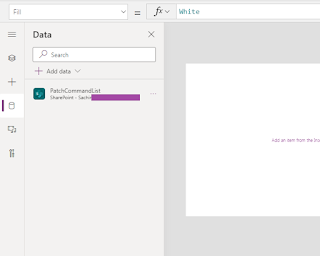
  4. Add SharePoint data source connection and add that list in PowerApps.

  5. Now add a button and write below function on it's OnSelect property.
  6. If(
        IsBlankOrError(
            Patch(
                PatchCommandList,
                First(
                    Filter(
                        PatchCommandList,
                        Title = "Sachin"
                    )
                ),
                {LName: "Jain"}
            )
        ),
        Patch(
            PatchCommandList,
            Defaults(PatchCommandList),
            {
                Title: "Sachin",
                LName: "Jain"
            }
        )
    )
    
  7. What this code will perform is that, it will first execute a Patch update command and check if the result is blank or any error occurred. If YES, then it means that the record we are going to update doesn't exists, therefore, it will execute another Patch command which will insert the record.
  8. Now play the app and press the button. You will be surprised, that the record get inserted.

  9. Now, I will change the LName in update section.
  10. Once, again, play the app and press the button. Now, it should update the existing record. Let's see the output.

  11. Wow!, It updated the record.
  12. So, this way, you can use Patch function in this way when you are in dilemma and not sure which record to update and which to insert.
With this, I am concluding this post.
Happy Coding !!!
Will see you again with some new topics.

Stay Safe !
Stay Healthy !

Sunday, January 16, 2022

Power Automate: Useful HTTP Request Actions Part 4

 Hello Friends,

Welcome back with another post on Power Automate. This post is in continuation to one of my earlier post(s) on different ways we can use HTTP request action (Send an HTTP request to SharePoint) in Power Automate to get different kind of information. I will be adding more and more options in this post from time to time. Below is the link of earlier post(s)-

  1. Power Automate: Useful HTTP Request Actions Part 1
  2. Power Automate: Useful HTTP Request Actions Part 2
  3. Power Automate: Useful HTTP Request Actions Part 3
Today, we will learn about below ones-
  1. Create SharePoint List
  2. Create Column(s)
  3. Update Column(s) Display Name
  4. Read Excel And Insert Data
Sometimes, there is a requirement to read an uploaded excel and create List for that in SharePoint and insert items in that list. So, either you need to do this activity manually OR you can use Power Automate to achieve the same. We are discussing Power Automate option here.
  1. Our process will divide into following steps-
    1. Create SharePoint List
    2. Create/Rename Columns In List
    3. Read Excel from Document Library
    4. Add Items from Excel into SharePoint list
Let's start-
  1. Create SharePoint List-
    1. First we will create custom SharePoint list named "SharePointListTemplateIDs" using Power Automate.
    2. Add an action "Send HTTP request to SharePoint".
    3. The Body template used is-
    4. {
      
      	"__metadata":{ "type":"SP.List" },
      	"AllowContentTypes":true,
      	"BaseTemplate":100,
      	"Title":"SharePointListTemplateIDs",
      
      	"Description":"This list contains the IDs of different types of lists/libraries we can create."
      
      }
      
    5. BaseTemplate is the Id that represents to a  List type. 100 is for Custom list. Rest are as below-
    6. This will create list in SharePoint.
  2. Create/Rename Columns In List-
    1. We will create/rename below columns-
      1. Name: (We will not be creating this column. We will use Title Column and will rename it to Name)
      2. TemplateID: (Type: Number; Required: true) 
      3. Description: (Type: Text (Multiline); Required: false)
    2. For this, we will follow below steps-
      1. Rename "Title" to "Name"
      2. Create "TemplateID"
      3. Rename "TemplateID" to "Template ID"
      4. Create "Description"
    3. Inputs are-
      1. Rename "Title" to "Name"
      2. Create "TemplateID"
      3. Rename "TemplateID" to "Template ID"
      4. Create "Description"

  3. Read Excel from Document Library-
    1. Now we will read the Excel file. We had uploaded the file in Documents library. This file contains the Name/TemplateID/Description columns as shown above in the post.
  4. Add Items from Excel into SharePoint List-
  5. That's all. Now save the flow and execute it.
  6. Here's the result-
  7. Please feel free to sent me your queries or any functionality that you want to achieve and currently not able to do so. I would be happy, if would be able to provide it's solution.
  8. Next Post Link-
    1. Coming soon...
With this, I am concluding this post.
Happy Coding !!!
Will see you again with some new topics.

Stay Safe !
Stay Healthy !