Showing posts with label Patch. Show all posts

Tuesday, February 1, 2022

PowerApps: Patch Create n Update

 Hello Friends,

Welcome back with another post. Today, we will discuss about Patch function in PowerApps. Patch function is used to create as well update a record in data source. It returns the object of the record it has created or updated.

So, the scenario is- "Sometimes, we have a mix of existing records as well as new records (yet to create in data source) in collection. Now, we want to update the existing records while if the record is not available, then we need to create that record.". Let's see, how we can achieve this-

  1. I have a simple list named "PatchCommandList" having 2 columns Title & LName.
  2. Right now, it is empty.
  3. Now, we will create a PowerApps app named "PatchCommandApp".
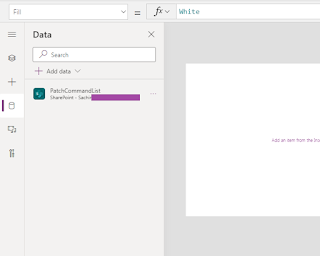
  4. Add SharePoint data source connection and add that list in PowerApps.

  5. Now add a button and write below function on it's OnSelect property.
  6. If(
        IsBlankOrError(
            Patch(
                PatchCommandList,
                First(
                    Filter(
                        PatchCommandList,
                        Title = "Sachin"
                    )
                ),
                {LName: "Jain"}
            )
        ),
        Patch(
            PatchCommandList,
            Defaults(PatchCommandList),
            {
                Title: "Sachin",
                LName: "Jain"
            }
        )
    )
    
  7. What this code will perform is that, it will first execute a Patch update command and check if the result is blank or any error occurred. If YES, then it means that the record we are going to update doesn't exists, therefore, it will execute another Patch command which will insert the record.
  8. Now play the app and press the button. You will be surprised, that the record get inserted.

  9. Now, I will change the LName in update section.
  10. Once, again, play the app and press the button. Now, it should update the existing record. Let's see the output.

  11. Wow!, It updated the record.
  12. So, this way, you can use Patch function in this way when you are in dilemma and not sure which record to update and which to insert.
With this, I am concluding this post.
Happy Coding !!!
Will see you again with some new topics.

Stay Safe !
Stay Healthy !

Thursday, November 18, 2021

PowerApps: Bulk Insert (Using Patch)

Hello Friends,

Welcome back with some new topics. Today, we will discuss about an interview question that is asked in almost all PowerApps interviews.

Ques: How do you insert bulk data in data source using PowerApps?

At first sight, we will say NO WAY. Because Submit Form works on submitting the Form so works for single record. And we use Patch for inserting / updating single record normally.

BUT, do you know that the Patch function is the solution of above question? 🤔

Yes, Patch function inserts data in bulk also. 

So, the answer is YES we can do using Patch function.

The complete syntax is-

Patch(datasource,table)

Here datasource is the source where we have to insert the data and table is the collection of records that needs to be inserted as bulk in datasource. Let's try-

  1. First of all, create a simple list. I had created a basic list with default Title column and added four records.
  2. Now, Open the PowerApps maker Portal. Create a new PowerApps named "BulkInsertApp". Add-
    1. Label with text as "Source List"
    2. Gallery and link with the list (BulkInsertList) (Control Name: galleryBulkInsertList)
    3. Button with text as "Bulk Insert" (Control Name: btnBulkInsert)
    4. Label with text as "New Item"
    5. Input Box with Hint Text as "Enter New Item Here..." and Default Text as blank (Control Name: txtNewItem)
    6. Button with text as "Add To Local Collection" (Control Name: btnAddToColl)

  3. The screen will look like above screenshot.
  4. Now select the button "btnBulkInsert" and choose the OnSelect property. Add below function-
    1. Patch(
          BulkInsertList,
          collLocalCollectionNewItems
      );
      ClearCollect(
          collLocalCollectionNewItems,
          []
      );
      
  5. Patch will perform the bulk insert activity from collLocalCollectionNewItems to BulkInsertList and then we are using ClearCollect to clear the local collection.
  6. Now select the button "btnAddToColl" and choose OnSelect property. Add below function-
    1. Collect(
          collLocalCollectionNewItems,
          {Title: txtNewItem.Text}
      );
      Reset(txtNewItem); 
  7. Here, we are adding the text of text box in local collection "collLocalCollectionNewItems" and then resetting the text box.
  8. That's all. Execute the PowerApps and add couple of data to local collection.
  9. I have added "E" and "F" to local collection. Let check the collection-
  10. Now click on Bulk Insert button.
  11. Before Click-
  12. After Click-

  13. The list status is-

  14. If we check the local collection now. It should be blank-
  15. This way, we can insert bulk data in data source using Patch function.
  16. NOTE:-
    1. If you insert too much data using this technique then remember the screen remains in block/hang mode till all the data does not get inserted in data source. Therefore, we should avoid large data insertion using this technique. 
    2. Rather we should prepare a separate mechanism where we we insert the bulk data as a  single JSON in a temporary list/table.
    3. There should be a Power Automate linked to that temporary table which will read that input, Parse the JSON and insert the data in data source. This way, your app will not stuck and the purpose will also get achieved.
With this, I am concluding this post.
Happy Coding !!!
Will see you again with some new topics.

Stay Safe !
Stay Healthy !