Showing posts with label Show Column. Show all posts

Wednesday, September 21, 2022

Power Automate: Export To Excel For Dynamic View/Filter Selection In PowerApps

Hello Friends,

Welcome back with another post on Power Automate. We had already discussed about "Export To Excel" in our earlier posts. However, we are again going to discuss the same. This time, we are getting the data based upon the selection of View as well as filters applied in PowerApps. This post is also related to my previous two posts-
Let's start-
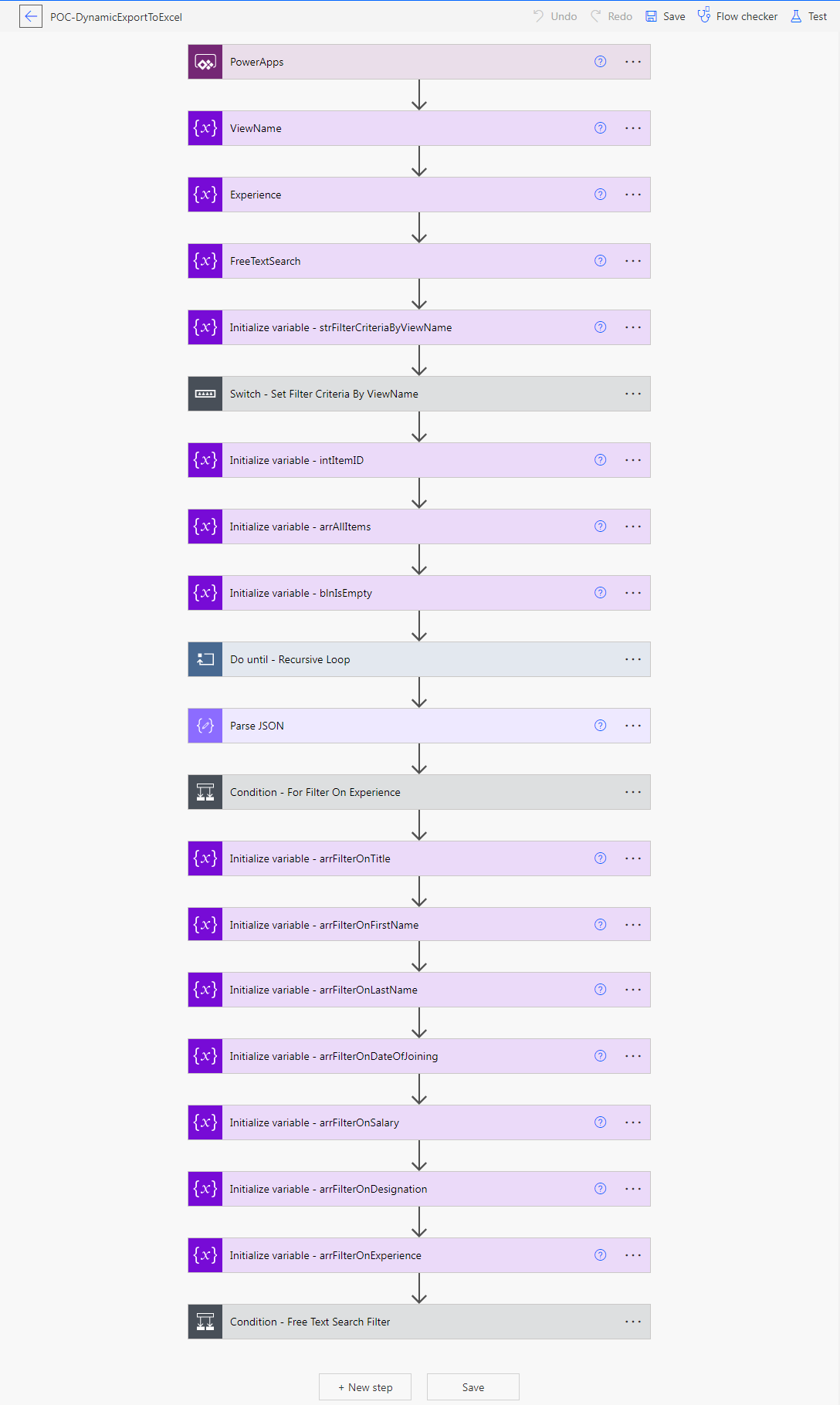
  1. Open the Power Automate maker portal and create a Instant cloud flow with trigger type as "PowerApps" and flow name as- "POC-DynamicExportToExcel".
  2. Now, we have 3 parameters to apply filter upon data-
    1. View Name
    2. Experience
    3. Free Text Search
  3. We will initialize 3 variables (using Initialize variable and value as Ask in PowerApps) that will communicate with PowerApps to provide these values to the flow-
  4. Variable1: ViewName
  5. Variable2: Experience
  6. Variable3: FreeTextSearch
  7. Now, we will define another variable named "strFilterCriteriaByViewName". This will be the first filter criteria.
  8. Keep saving your flow frequently.
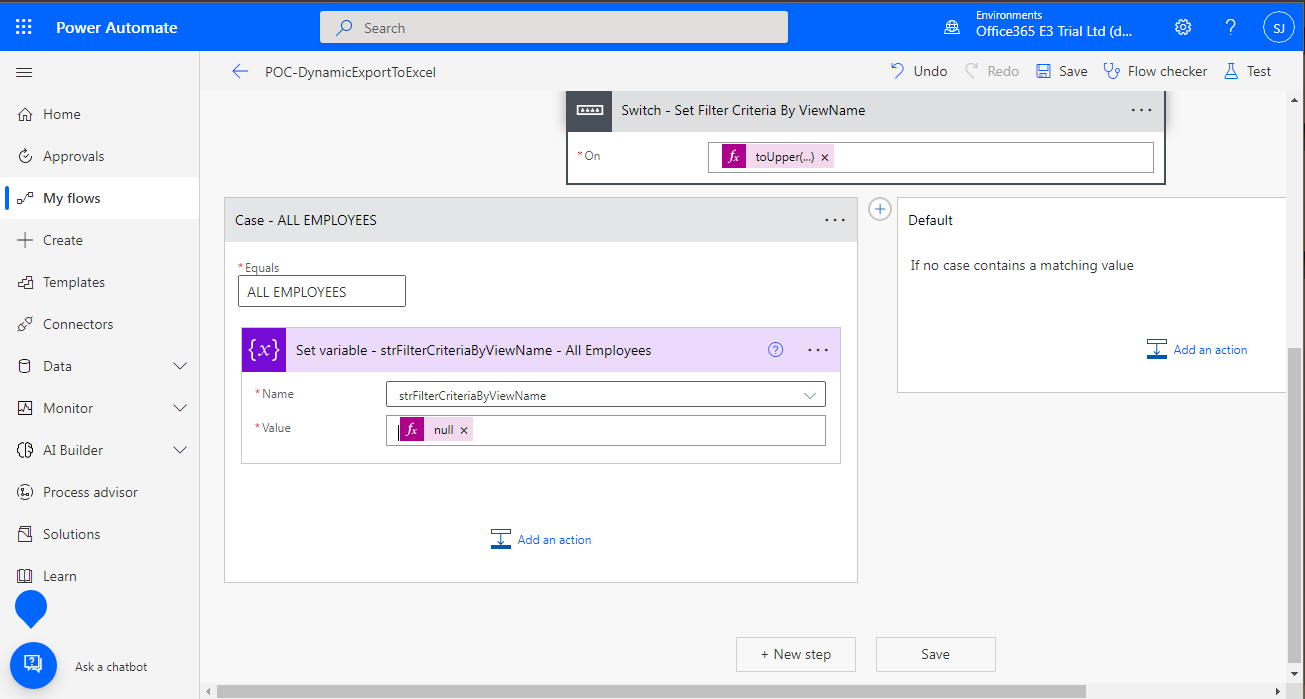
  9. Here, we will use the same filter conditions as we applied in PowerApps. For that, we will apply a Switch-Case.
  10. Now, refer back to the previous post, where, we have defined the Views. Check the "Items" property of DataTable / Gallery.
  11. Please find below the function from PowerApps for ready reference.
    1. Switch(
          Dropdown_SelectView.SelectedText.ViewName,
          "All Employees",
          Filter(
              EmployeeInfo,
              Experience.Value in If(
                  Radio_SelectExperience.SelectedText.Experience = "All",
                  Experience.Value,
                  Radio_SelectExperience.SelectedText.Experience
              ) && (Trim(TextInput_Search.Text) in 'First Name' || Trim(TextInput_Search.Text) in 'Last Name' || 
      Trim(TextInput_Search.Text) in Designation.Value || Trim(TextInput_Search.Text) in Experience.Value || 
      Upper(Title) = Upper(Trim(TextInput_Search.Text))) || Text(
                  'Date Of Joining',
                  "m/d/yyyy",
                  "en-US"
              ) = Text(
                  Trim(TextInput_Search.Text),
                  "m/d/yyyy",
                  "en-US"
              ) || Text(Trim(Salary)) = Trim(TextInput_Search.Text)
          ),
          "Software Engineer",
          Filter(
              EmployeeInfo,
              "Software Engineer" in Designation.Value,
              Experience.Value in If(
                  Radio_SelectExperience.SelectedText.Experience = "All",
                  Experience.Value,
                  Radio_SelectExperience.SelectedText.Experience
              ) && (Trim(TextInput_Search.Text) in 'First Name' || Trim(TextInput_Search.Text) in 'Last Name' || 
      Trim(TextInput_Search.Text) in Designation.Value || Trim(TextInput_Search.Text) in Experience.Value || 
      Upper(Title) = Upper(Trim(TextInput_Search.Text))) || Text(
                  'Date Of Joining',
                  "m/d/yyyy",
                  "en-US"
              ) = Text(
                  Trim(TextInput_Search.Text),
                  "m/d/yyyy",
                  "en-US"
              ) || Text(Trim(Salary)) = Trim(TextInput_Search.Text)
          ),
          "Module Lead",
          Filter(
              EmployeeInfo,
              "Module Lead" in Designation.Value,
              Experience.Value in If(
                  Radio_SelectExperience.SelectedText.Experience = "All",
                  Experience.Value,
                  Radio_SelectExperience.SelectedText.Experience
              ) && (Trim(TextInput_Search.Text) in 'First Name' || Trim(TextInput_Search.Text) in 'Last Name' || 
      Trim(TextInput_Search.Text) in Designation.Value || Trim(TextInput_Search.Text) in Experience.Value || 
      Upper(Title) = Upper(Trim(TextInput_Search.Text))) || Text(
                  'Date Of Joining',
                  "m/d/yyyy",
                  "en-US"
              ) = Text(
                  Trim(TextInput_Search.Text),
                  "m/d/yyyy",
                  "en-US"
              ) || Text(Trim(Salary)) = Trim(TextInput_Search.Text)
          ),
          "Project Manager",
          Filter(
              EmployeeInfo,
              "Project Manager" in Designation.Value,
              Experience.Value in If(
                  Radio_SelectExperience.SelectedText.Experience = "All",
                  Experience.Value,
                  Radio_SelectExperience.SelectedText.Experience
              ) && (Trim(TextInput_Search.Text) in 'First Name' || Trim(TextInput_Search.Text) in 'Last Name' || 
      Trim(TextInput_Search.Text) in Designation.Value || Trim(TextInput_Search.Text) in Experience.Value || 
      Upper(Title) = Upper(Trim(TextInput_Search.Text))) || Text(
                  'Date Of Joining',
                  "m/d/yyyy",
                  "en-US"
              ) = Text(
                  Trim(TextInput_Search.Text),
                  "m/d/yyyy",
                  "en-US"
              ) || Text(Trim(Salary)) = Trim(TextInput_Search.Text)
          ),
          "Program Manager",
          Filter(
              EmployeeInfo,
              "Program Manager" in Designation.Value,
              Experience.Value in If(
                  Radio_SelectExperience.SelectedText.Experience = "All",
                  Experience.Value,
                  Radio_SelectExperience.SelectedText.Experience
              ) && (Trim(TextInput_Search.Text) in 'First Name' || Trim(TextInput_Search.Text) in 'Last Name' || 
      Trim(TextInput_Search.Text) in Designation.Value || Trim(TextInput_Search.Text) in Experience.Value || 
      Upper(Title) = Upper(Trim(TextInput_Search.Text))) || Text(
                  'Date Of Joining',
                  "m/d/yyyy",
                  "en-US"
              ) = Text(
                  Trim(TextInput_Search.Text),
                  "m/d/yyyy",
                  "en-US"
              ) || Text(Trim(Salary)) = Trim(TextInput_Search.Text)
          )
      )
  12. The same we are going to implement in flow. The primary filter is upon Designation-
    1. All Employees - No Filter Criteria
    2. Software Engineer - Filter Designation by "Software Engineer"
    3. Module Lead - Filter Designation by "Module Lead"
    4. Project Manager - Filter Designation by "Project Manager"
    5. Program Manager - Filter Designation by "Program Manager"
  13. We had completed first part.
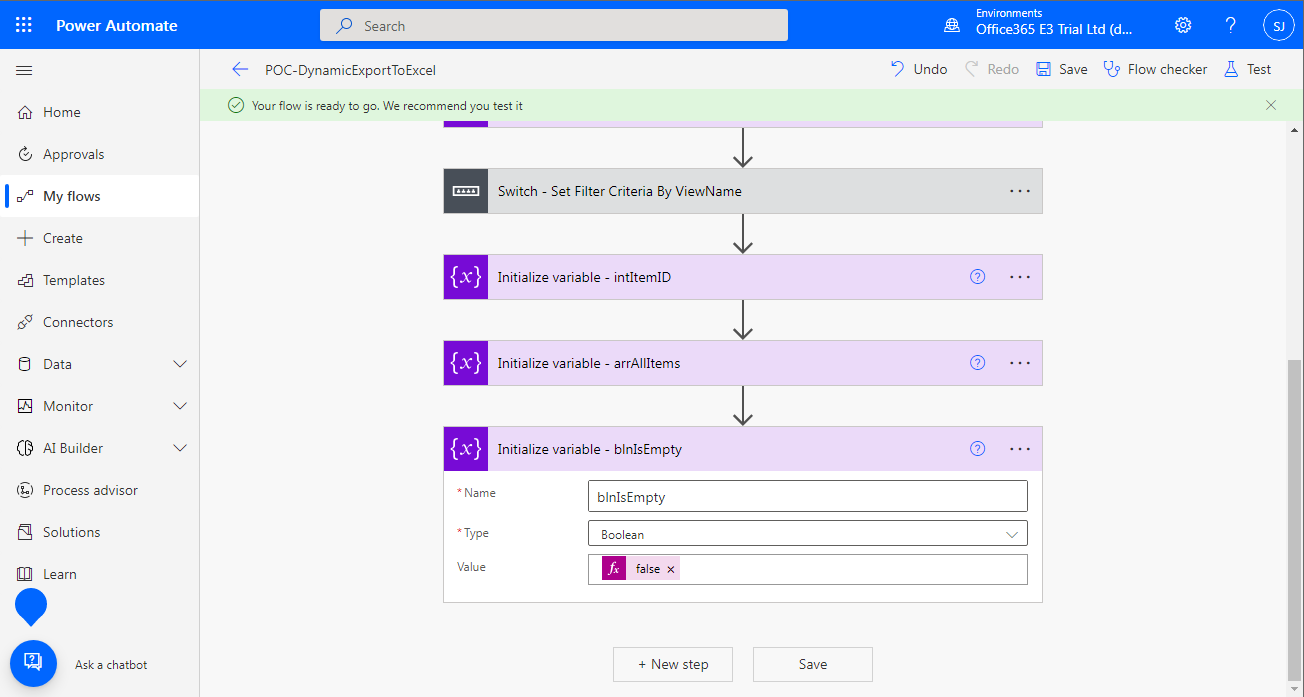
  14. Now, we will fetch all such items from SharePoint list that matches this filter criteria. For that, we have to define three variables then use "Do Until" action to perform the activity.
  15. Now, we will use Do-Until action to fetch the items.
  16. Get Items Using ItemID variable & FilterCriteria
  17. Select the required fields
  18. Join the output with arrAllItems array
  19. Update the variable arrAllItems with the previous action result
  20. Update the intItemID with the last ItemID from the output of GetItems action. If GetItems action output is NULL, then assign it with 0.
  21. Now, check if the output of GetItems is empty or not. If empty, set the blnIsEmpty to true otherwise false.
  22. Now, we will set the "Configure Run After" condition for the action. For this, click on ellipses (3 dots) ahead to the Set blnIsEmpty action and choose "Configure run after".
  23. You will find that "is successful" is by default selected. Select "is failed" as well and click on Done.
  24.  
  25. This completes the second part.
  26. Now, the third part is to filter data by Experience choice. If Experience selected by user is not "All", then we have to apply additional filter of Experience upon the outcome of Do-Until action.
  27. Before that, we will execute this flow and get the schema so that we can parse the output to JSON as we cannot apply filter upon array.
  28. Then use Parse JSON action.
  29. Now add a "Condition" action and check if Experience is not selected as "All". If true, apply "Filter" action on output of ParseJSON action and set the output again to arrAllItems variable.
  30. This completes third part.
  31. Now, the fourth part is to apply filter using free text search.
  32. This is the main section. Here we will apply filter on each field separately and capture the outcome in an individual array.
  33. After then we will combine all these outcomes in single array. Thus, unique results will be obtained.
  34. As we can see that we had applied free text search upon all 7 fields. Thus, we have to create 7 array variables and then apply filter one by one.
  35. First define the arrays.
  36. Now, check if the FreeTextSearch variable is having any value or not. If Yes, then start filtering one by one.
  37. Apply Parse JSON upon arrAllItems so that filter can be applied.
  38. We will check if the FreeTextSearch value is contained (unless specified) in the item respective field.
  39. Filter for Title field.
  40. Remember, when you are applying a filter, you have to use the output (body) of Parse JSON action. When you are updating the respective array with the output of respective filter, then you have to use the output (body) of Filter action.
  41. Filter for First Name field.
  42. Remember, when you are applying a filter, you have to use the output (body) of Parse JSON action. When you are updating the respective array with the output of respective filter, then you have to use the output (body) of Filter action.
  43. Filter for Last Name field.
  44. Remember, when you are applying a filter, you have to use the output (body) of Parse JSON action. When you are updating the respective array with the output of respective filter, then you have to use the output (body) of Filter action.
  45. Filter for Date Of Joining field. Here, we will first format the date to "M/d/yyyy" format and then check if both are equal. Additionally, here we will use the "Configure run after" as well because in case the FreeTextSearch is not a date then the formatDateTime will throw an error and our further processing will get failed. So, we have to handle that case.
  46. Remember, when you are applying a filter, you have to use the output (body) of Parse JSON action. When you are updating the respective array with the output of respective filter, then you have to use the output (body) of Filter action.
  47. Filter for Salary field.
  48. Remember, when you are applying a filter, you have to use the output (body) of Parse JSON action. When you are updating the respective array with the output of respective filter, then you have to use the output (body) of Filter action.
  49. Filter for Designation field.
  50. Remember, when you are applying a filter, you have to use the output (body) of Parse JSON action. When you are updating the respective array with the output of respective filter, then you have to use the output (body) of Filter action.
  51. Filter for Experience field. However, we can avoid filter condition upon Experience as this is already present upon screen in the form of Radio Choice.
  52. Remember, when you are applying a filter, you have to use the output (body) of Parse JSON action. When you are updating the respective array with the output of respective filter, then you have to use the output (body) of Filter action.
  53. Now, we have individual filter results for each FreeText filter criteria. We have to combine these outcomes. Thus, we will now use Compose action to apply union function to combine these outcomes. The benefit of union is that it takes unique items. If any item is found duplicate, it keeps only one of those item instances. 
  54. Now, set the output of this Compose action to arrAllItems.
  55. This completes out fourth part.
  56. Now, the fifth & final part. Here, we will export this output to Excel. For this, you may refer my earlier blogs using OneDrive as well as SharePoint library.
    1. Using One Drive-
      1. Export To Excel Using Power Automate
    2. Using SharePoint Library-
      1. Power Automate: Export To Excel (SharePoint)
  57. This is how, we can Export data to excel.
With this, I am concluding this post.
Happy Coding !!!
Will see you again with some new topics.

Stay Safe !
Stay Healthy !

Tuesday, September 20, 2022

PowerApps: Gallery Show/Hide Columns Dynamically

Hello Friends,

Welcome back with another post on PowerApps. In our last post, we learned about the Show/Hide of columns in DataTable. Here is the link of the post.

  1. PowerApps: DataTable Show/Hide Columns Dynamically

If we wish to have the same feature using Gallery, then would it be possible? Because, in Gallery, there are no columns? The answer is YES. We can achieve the same functionality using Gallery as well. Today, we will learn about show/hide of column in PowerApps Gallery dynamically. The objective is to create an App where user can-

  1. Select the columns to display as per it's choice
  2. Select any of the available view and the columns should display based upon that view. Also, the data must get filter accordingly
  3. Apply additional filter based upon a particular column
  4. Apply additional filter using a Free Text Search
This is what, we are going to build-
Let's start-
  1. We already have the screen designed last time in our last post (see link above). We are going to use the same screen.
  2. Click on ellipses (3 dots) ahead to "ScreenHome" and select "Duplicate Screen".
  3. It will create a duplicate screen with name as "ScreenHome_1" including all the controls with suffixed as "_1".
  4. Now, rename the screen from "ScreenHome_1" to "ScreenGallery". Renaming is also simple. 
  5. Click on ellipses (3 dots) ahead to "ScreenHome_1" and select "Rename".
  6. Now, we can see that DataTable_Result is also got renamed as "DataTable_Result_1". Copy the functions written on below properties for DataTable_Result_1.
    1. Height
    2. Items
    3. Width
    4. X
    5. Y
    6. Visible property function for any one column.
  7. Now, remove the DataTable_Result_1 control. 
  8. From here, we will first add "Text label" that will serve the purpose of Gallery Headers. Then we will add a Gallery (Blank vertical gallery). Later, we will add Labels inside gallery template that will serve the purpose to display the items data.
  9. Let's resume the process.
  10. Add a Text label and update the properties as below-
    1. Name: Label_Header_ID
    2. Text: ID
    3. BorderColor: RGBA(255, 255, 255, 1)
    4. BorderThickness: 1
    5. Color: RGBA(255, 255, 255, 1)
    6. Fill: RGBA(0, 18, 107, 1)
    7. Height: 40
    8. X: Label_SelectView_1.X
    9. Y: Label_SelectColumns_1.Y+Label_SelectColumns_1.Height+50
    10. Visible & Width properties will be updated later on.
    11. Lastly, from the right side properties pane, set "Text Alignment" to "Align center"
  11. Add another Text label and update the properties as below. (Better, make a duplicate copy of the "ID" label so that you have to set only 4 properties rather than these many-
    1. Name: Label_Header_Title
    2. Text: Title
    3. X: Label_Header_ID.X+Label_Header_ID.Width
    4. Y: Label_Header_ID.Y
    5. Visible & Width properties will be updated later on
  12. Here, we have changed the way to define the X & Y properties. Now, onwards, only Name, Text & X properties will be updated. Every next label will have X property a the sum of X & Width property of previous label. Rest will remain common.
  13. Make a duplicate copy of this "Title" label and update properties as below-
    1. Name: Label_Header_First_Name
    2. Text: First Name
    3. X: Label_Header_Title.X+Label_Header_Title.Width
    4. Visible & Width properties will be updated later on
  14. Make a duplicate copy of this "First Name" label and update properties as below-
    1. Name: Label_Header_Last_Name
    2. Text: Last Name
    3. X: Label_Header_First_Name.X+Label_Header_First_Name.Width
    4. Visible & Width properties will be updated later on
  15. Make a duplicate copy of this "Last Name" label and update properties as below-
    1. Name: Label_Header_Date_Of_Joining
    2. Text: Date Of Joining
    3. X: Label_Header_Last_Name.X+Label_Header_Last_Name.Width
    4. Visible & Width properties will be updated later on
  16. Make a duplicate copy of this "Date Of Joining" label and update properties as below-
    1. Name: Label_Header_Salary
    2. Text: Salary
    3. X: Label_Header_Date_Of_Joining.X+Label_Header_Date_Of_Joining.Width
    4. Visible & Width properties will be updated later on
  17. Make a duplicate copy of this "Salary" label and update properties as below-
    1. Name: Label_Header_Designation
    2. Text: Designation
    3. X: Label_Header_Salary.X+Label_Header_Salary.Width
    4. Visible & Width properties will be updated later on
  18. Make a duplicate copy of this "Designation" label and update properties as below-
    1. Name: Label_Header_Experience
    2. Text: Experience
    3. X: Label_Header_Designation.X+Label_Header_Designation.Width
    4. Visible & Width properties will be updated later on
  19. Finally, the outcome will be-
  20. Now, we will add a "Blank vertical gallery" and update it's properties as below-
    1. Name: BVG_Gallery_Result
    2. X: Label_SelectView_1.X
    3. Y: Label_Header_ID.Y+Label_Header_ID.Height
    4. Width: ScreenGallery.Width
    5. Height: ScreenGallery.Height-BVG_Gallery_Result.Y
    6. TemplateSize: 50
    7. TemplatePadding: 0
    8. BorderThickness: 1
  21. Now, we will update the "Items" property of this gallery. We have already copied the function for Items property from the DataTable (we deleted in beginning). The same function, we need to paste it over here.
    1. Switch(
          Dropdown_SelectView_1.SelectedText.ViewName,
          "All Employees",
          Filter(
              EmployeeInfo,
              Experience.Value in If(
                  Radio_SelectExperience_1.SelectedText.Experience = "All",
                  Experience.Value,
                  Radio_SelectExperience_1.SelectedText.Experience
              ) && (Trim(TextInput_Search_1.Text) in 'First Name' || Trim(TextInput_Search_1.Text) in 'Last Name' || 
      Trim(TextInput_Search_1.Text) in Designation.Value || Trim(TextInput_Search_1.Text) in Experience.Value || 
      Upper(Title) = Upper(Trim(TextInput_Search_1.Text))) || Text(
                  'Date Of Joining',
                  "m/d/yyyy",
                  "en-US"
              ) = Text(
                  Trim(TextInput_Search_1.Text),
                  "m/d/yyyy",
                  "en-US"
              ) || Text(Trim(Salary)) = Trim(TextInput_Search_1.Text)
          ),
          "Software Engineer",
          Filter(
              EmployeeInfo,
              "Software Engineer" in Designation.Value,
              Experience.Value in If(
                  Radio_SelectExperience_1.SelectedText.Experience = "All",
                  Experience.Value,
                  Radio_SelectExperience_1.SelectedText.Experience
              ) && (Trim(TextInput_Search_1.Text) in 'First Name' || Trim(TextInput_Search_1.Text) in 'Last Name' || 
      Trim(TextInput_Search_1.Text) in Designation.Value || Trim(TextInput_Search_1.Text) in Experience.Value || 
      Upper(Title) = Upper(Trim(TextInput_Search_1.Text))) || Text(
                  'Date Of Joining',
                  "m/d/yyyy",
                  "en-US"
              ) = Text(
                  Trim(TextInput_Search_1.Text),
                  "m/d/yyyy",
                  "en-US"
              ) || Text(Trim(Salary)) = Trim(TextInput_Search_1.Text)
          ),
          "Module Lead",
          Filter(
              EmployeeInfo,
              "Module Lead" in Designation.Value,
              Experience.Value in If(
                  Radio_SelectExperience_1.SelectedText.Experience = "All",
                  Experience.Value,
                  Radio_SelectExperience_1.SelectedText.Experience
              ) && (Trim(TextInput_Search_1.Text) in 'First Name' || Trim(TextInput_Search_1.Text) in 'Last Name' || 
      Trim(TextInput_Search_1.Text) in Designation.Value || Trim(TextInput_Search_1.Text) in Experience.Value || 
      Upper(Title) = Upper(Trim(TextInput_Search_1.Text))) || Text(
                  'Date Of Joining',
                  "m/d/yyyy",
                  "en-US"
              ) = Text(
                  Trim(TextInput_Search_1.Text),
                  "m/d/yyyy",
                  "en-US"
              ) || Text(Trim(Salary)) = Trim(TextInput_Search_1.Text)
          ),
          "Project Manager",
          Filter(
              EmployeeInfo,
              "Project Manager" in Designation.Value,
              Experience.Value in If(
                  Radio_SelectExperience_1.SelectedText.Experience = "All",
                  Experience.Value,
                  Radio_SelectExperience_1.SelectedText.Experience
              ) && (Trim(TextInput_Search_1.Text) in 'First Name' || Trim(TextInput_Search_1.Text) in 'Last Name' || 
      Trim(TextInput_Search_1.Text) in Designation.Value || Trim(TextInput_Search_1.Text) in Experience.Value || 
      Upper(Title) = Upper(Trim(TextInput_Search_1.Text))) || Text(
                  'Date Of Joining',
                  "m/d/yyyy",
                  "en-US"
              ) = Text(
                  Trim(TextInput_Search_1.Text),
                  "m/d/yyyy",
                  "en-US"
              ) || Text(Trim(Salary)) = Trim(TextInput_Search_1.Text)
          ),
          "Program Manager",
          Filter(
              EmployeeInfo,
              "Program Manager" in Designation.Value,
              Experience.Value in If(
                  Radio_SelectExperience_1.SelectedText.Experience = "All",
                  Experience.Value,
                  Radio_SelectExperience_1.SelectedText.Experience
              ) && (Trim(TextInput_Search_1.Text) in 'First Name' || Trim(TextInput_Search_1.Text) in 'Last Name' || 
      Trim(TextInput_Search_1.Text) in Designation.Value || Trim(TextInput_Search_1.Text) in Experience.Value || 
      Upper(Title) = Upper(Trim(TextInput_Search_1.Text))) || Text(
                  'Date Of Joining',
                  "m/d/yyyy",
                  "en-US"
              ) = Text(
                  Trim(TextInput_Search_1.Text),
                  "m/d/yyyy",
                  "en-US"
              ) || Text(Trim(Salary)) = Trim(TextInput_Search_1.Text)
          ) 
      ) 
  22. Now, we will add Text labels to show the items data. Click on "Edit gallery" icon shown in gallery.
  23. It will change the template to edit mode.
  24. Now add "Text label" and update properties as below-
    1. Name: Label_Value_ID
    2. Text: ThisItem.ID
    3. BorderThickness: 1
    4. Height: BVG_Gallery_Result.TemplateHeight
    5. X: Label_Header_ID.X
    6. Y: 0
    7. Visible: Label_Header_ID.Visible
    8. Width: Label_Header_ID.Width
  25. Add "Text label" and update properties as below-
    1. Name: Label_Value_Title
    2. Text: ThisItem.Title
    3. BorderThickness: Label_Value_ID.BorderThickness
    4. Height: BVG_Gallery_Result.TemplateHeight
    5. X: Label_Header_Title.X
    6. Y: Label_Value_ID.Y
    7. Visible: Label_Header_Title.Visible
    8. Width: Label_Header_Title.Width
  26. Make a duplicate copy of "Title" value label and update properties as below-
    1. Name: Label_Value_First_Name
    2. Text: ThisItem.'First Name'
    3. X: Label_Header_First_Name.X
    4. Visible: Label_Header_First_Name.Visible
    5. Width: Label_Header_First_Name.Width
  27. Make a duplicate copy of "First Name" value label and update properties as below-
    1. Name: Label_Value_Last_Name
    2. Text: ThisItem.'Last Name'
    3. X: Label_Header_Last_Name.X
    4. Visible: Label_Header_Last_Name.Visible
    5. Width: Label_Header_Last_Name.Width
  28. Make a duplicate copy of "Last Name" value label and update properties as below-
    1. Name: Label_Value_Date_Of_Joining
    2. Text: ThisItem.'Date Of Joining'
    3. X: Label_Header_Date_Of_Joining.X
    4. Align: Align.Right
    5. Visible: Label_Header_Date_Of_Joining.Visible
    6. Width: Label_Header_Date_Of_Joining.Width
  29. Make a duplicate copy of "Date Of Joining" value label and update properties as below-
    1. Name: Label_Value_Salary
    2. Text: Text(ThisItem.Salary,"#00,000.00")
    3. X: Label_Header_Salary.X
    4. Align: Align.Right
    5. Visible: Label_Header_Salary.Visible
    6. Width: Label_Header_Salary.Width
  30. Make a duplicate copy of "Salary" value label and update properties as below-
    1. Name: Label_Value_Designation
    2. Text: ThisItem.Designation.Value
    3. X: Label_Header_Designation.X
    4. Align: Align.Left
    5. Visible: Label_Header_Designation.Visible
    6. Width: Label_Header_Designation.Width
  31. Make a duplicate copy of "Designation" value label and update properties as below-
    1. Name: Label_Value_Experience
    2. Text: ThisItem.Experience.Value
    3. X: Label_Header_Experience.X
    4. Align: Align.Left
    5. Visible: Label_Header_Experience.Visible
    6. Width: Label_Header_Experience.Width
  32. The outcome is here.
  33. Now, we will update the Visible & Width properties of Header Labels as below.
  34. Update the Width & Visible property of each header as below-
  35. Control: Label_Header_ID
    1. Visible: CountRows(
          Filter(
              collCurrentDisplayColumnsWithOrder,
              Substitute(
                  ColumnName,
                  "_x0020_",
                  " "
              ) = "ID"
          )
      ) > 0
      
    2. Width: If(
          CountRows(
              Filter(
                  collCurrentDisplayColumnsWithOrder,
                  Substitute(
                      ColumnName,
                      "_x0020_",
                      " "
                  ) = "ID"
              )
          ) > 0,
          BVG_Gallery_Result.Width / CountRows(collCurrentDisplayColumnsWithOrder),
          0
      ) 
  36. Control: Label_Header_Title
    1. Visible: CountRows(
          Filter(
              collCurrentDisplayColumnsWithOrder,
              Substitute(
                  ColumnName,
                  "_x0020_",
                  " "
              ) = "Title"
          )
      ) > 0
      
    2. Width: If(
          CountRows(
              Filter(
                  collCurrentDisplayColumnsWithOrder,
                  Substitute(
                      ColumnName,
                      "_x0020_",
                      " "
                  ) = "Title"
              )
          ) > 0,
          BVG_Gallery_Result.Width / CountRows(collCurrentDisplayColumnsWithOrder),
          0
      ) 
  37. Control: Label_Header_First_Name
    1. Visible: CountRows(
          Filter(
              collCurrentDisplayColumnsWithOrder,
              Substitute(
                  ColumnName,
                  "_x0020_",
                  " "
              ) = "First Name"
          )
      ) > 0
      
    2. Width: If(
          CountRows(
              Filter(
                  collCurrentDisplayColumnsWithOrder,
                  Substitute(
                      ColumnName,
                      "_x0020_",
                      " "
                  ) = "First Name"
              )
          ) > 0,
          BVG_Gallery_Result.Width / CountRows(collCurrentDisplayColumnsWithOrder),
          0
      )
      
  38. Control: Label_Header_Last_Name
    1. Visible: CountRows(
          Filter(
              collCurrentDisplayColumnsWithOrder,
              Substitute(
                  ColumnName,
                  "_x0020_",
                  " "
              ) = "Last Name"
          )
      ) > 0
      
    2. Width: If(
          CountRows(
              Filter(
                  collCurrentDisplayColumnsWithOrder,
                  Substitute(
                      ColumnName,
                      "_x0020_",
                      " "
                  ) = "Last Name"
              )
          ) > 0,
          BVG_Gallery_Result.Width / CountRows(collCurrentDisplayColumnsWithOrder),
          0
      )
      
  39. Control: Label_Header_Date_Of_Joining
    1. Visible: CountRows(
          Filter(
              collCurrentDisplayColumnsWithOrder,
              Substitute(
                  ColumnName,
                  "_x0020_",
                  " "
              ) = "Date Of Joining"
          )
      ) > 0
      
    2. Width: If(
          CountRows(
              Filter(
                  collCurrentDisplayColumnsWithOrder,
                  Substitute(
                      ColumnName,
                      "_x0020_",
                      " "
                  ) = "Date Of Joining"
              )
          ) > 0,
          BVG_Gallery_Result.Width / CountRows(collCurrentDisplayColumnsWithOrder),
          0
      )
      
  40. Control: Label_Header_Salary
    1. Visible: CountRows(
          Filter(
              collCurrentDisplayColumnsWithOrder,
              Substitute(
                  ColumnName,
                  "_x0020_",
                  " "
              ) = "Salary"
          )
      ) > 0
      
    2. Width: If(
          CountRows(
              Filter(
                  collCurrentDisplayColumnsWithOrder,
                  Substitute(
                      ColumnName,
                      "_x0020_",
                      " "
                  ) = "Salary"
              )
          ) > 0,
          BVG_Gallery_Result.Width / CountRows(collCurrentDisplayColumnsWithOrder),
          0
      )
      
  41. Control: Label_Header_Designation
    1. Visible: CountRows(
          Filter(
              collCurrentDisplayColumnsWithOrder,
              Substitute(
                  ColumnName,
                  "_x0020_",
                  " "
              ) = "Designation"
          )
      ) > 0
      
    2. Width: If(
          CountRows(
              Filter(
                  collCurrentDisplayColumnsWithOrder,
                  Substitute(
                      ColumnName,
                      "_x0020_",
                      " "
                  ) = "Designation"
              )
          ) > 0,
          BVG_Gallery_Result.Width / CountRows(collCurrentDisplayColumnsWithOrder),
          0
      )
      
  42. Control: Label_Header_Experience
    1. Visible: CountRows(
          Filter(
              collCurrentDisplayColumnsWithOrder,
              Substitute(
                  ColumnName,
                  "_x0020_",
                  " "
              ) = "Experience"
          )
      ) > 0
      
    2. Width: If(
          CountRows(
              Filter(
                  collCurrentDisplayColumnsWithOrder,
                  Substitute(
                      ColumnName,
                      "_x0020_",
                      " "
                  ) = "Experience"
              )
          ) > 0,
          BVG_Gallery_Result.Width / CountRows(collCurrentDisplayColumnsWithOrder),
          0
      )
      
  43. That's all. Now, you can save the app, publish it and play it. Before that, I have to add one button on previous screen (ScreenHome) so that I can navigate to the Gallery screen.
  44. Here we go. Start playing the app.
  45. Default load
  46. Removed "Date Of Joining" column
  47. Filter on Experience
  48. Free Text Search
  49. Changed View
  50. Selected All Columns
  51. This way, you can achieve the Show/Hide feature using Gallery as well.
  52. For me, the number of columns were less, therefore, I am able to manage using Screen Width / No of Columns. In case, the number of columns are more, change the logic of Width accordingly.
  53. Next, you may add Export To Excel feature as well.
    1. Power Automate: Export To Excel For Dynamic View/Filter Selection In PowerApps
With this, I am concluding this post.
Happy Coding !!!
Will see you again with some new topics.

Stay Safe !
Stay Healthy !