Hello Friends,
Welcome back with another post on PowerApps. We had discussed lot of things in some of our earlier posts. Sometimes, we have to apply multiple filter criteria on a single column. For example- we have a name column and we want to filter those names which Starts With "Wes" AND Ends With "mons". Additionally, it might be possible that instead of Starts with, user wants to filter records where Name Equals To "Richard Lin". Or, user may want to get the records which Starts With "Roger". Means, there may be multiple combination of filter options with Single or Multiple criteria. How, we are going to tackle it?

Today, we will be discussing the same. Let's start-
- Login to PowerApps Maker Portal.
- Create a blank PowerApps Canvas App and give a suitable name.
- Either refer below post for adding a scrollable gallery or you can just create a gallery and add some data.
- I had added a scrollable gallery from Scroll Bar post and the content of gallery picked from Pagination component post.

- Here, I have created 1 master collection named "coll_MasterData" and later on assigned this master collection to another collection named "coll_FinalData". The reason of creating the second collection is to assign the filtered data to this collection so that it can be linked to gallery, while our master collection will remain intact.
- Next, we will add-
- Text Label (1 Nos)
- Text Input (2 Nos)
- Dropdown (3 Nos)
- Button (2 Nos)
- After adding, I had grouped them. The naming conventions are-
- Text Label: lbl_FatherNameFilterTitle
- Dropdown For 1st Filter Criteria: dd_FatherNameFilter1
- Textinput For 1st Filter Criteria: txt_FatherNameFilter1
- Dropdown For Filter Join Condition: dd_FatherNameFilterJoin
- Dropdown For 2nd Filter Criteria: dd_FatherNameFilter2
- Textinput For 2nd Filter Criteria: txt_FatherNameFilter2
- Button For Apply Filter: btn_FatherNameFilter_Apply
- Button For Apply Filter: btn_FatherNameFilter_Clear
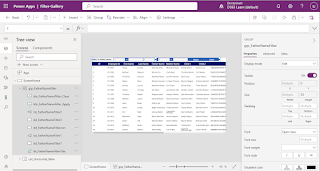
- Similary, add another set of controls (mentioned above) for Mother Name filter.
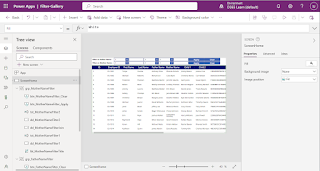
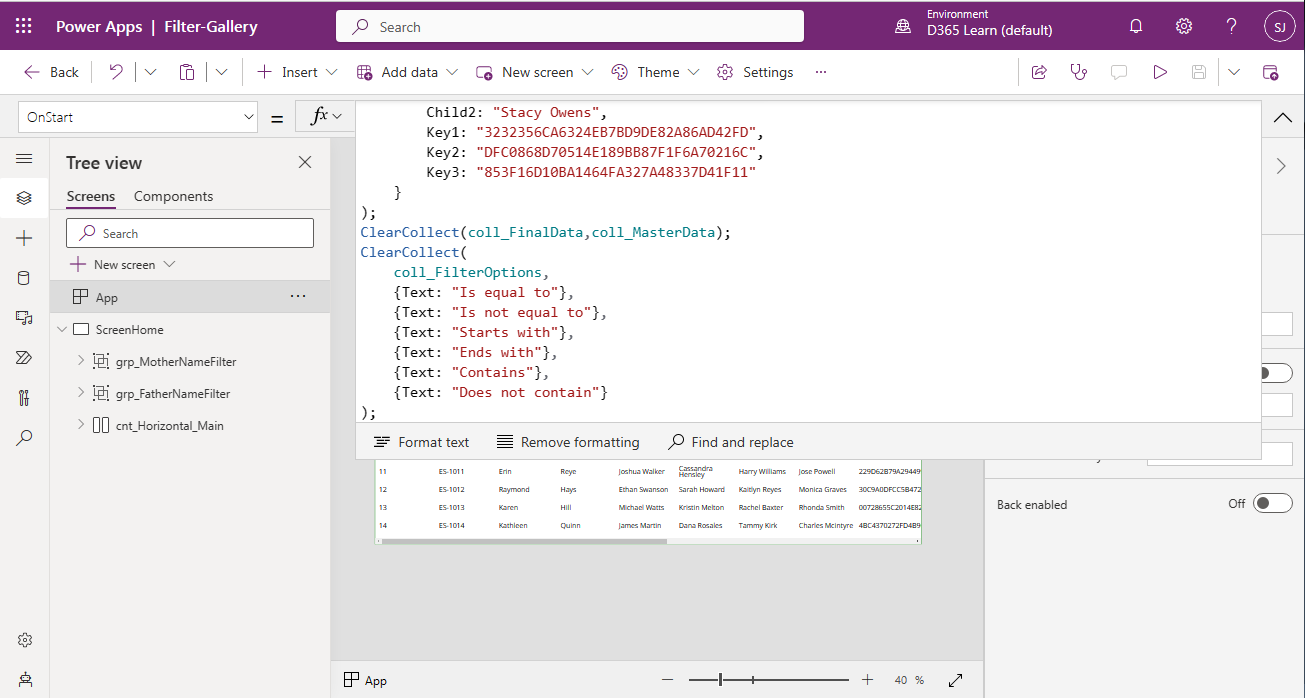
- Now, we will create a collection of various filter criteria. Likewise- "If equal to", "Contains" ...
- So, on App >> OnStart, we will create this collection.
ClearCollect(
    coll_FilterOptions,
    {Text: "Is equal to"},
    {Text: "Is not equal to"},
    {Text: "Starts with"},
    {Text: "Ends with"},
    {Text: "Contains"},
    {Text: "Does not contain"}
);

- Next, we will bind this collection with Items property of-
- dd_FatherNameFilter1
- dd_FatherNameFilter2
- dd_MotherNameFilter1
- dd_MotherNameFilter2

- Also assign the Default property to the first item of collection.
- Now, we will create another collection "coll_JoinConditions" for Join conditions (And/Or) on App >> OnStart. Later, we will bind this collection to the Items property of-
- dd_FatherNameFilterJoin
- dd_MotherNameFilterJoin

- Also assign the Default property to the first item of collection.

- At this point, our base structure is ready. Now, we will write the filter code for each button. Ideally, we must include one more button which will contain the common logic. The reason behind is that, when a user will click on "Apply" button, you have to validate the filters of each column. So, rather than writing the same code on each "Apply" button, write down the code on a common button and add the Select function for this button on each "Apply" button.
- Let's add the button and name it as "btn_ApplyCommonFilter". Later-on we will set it's visible property as False. So that, the button should not be visible to users.
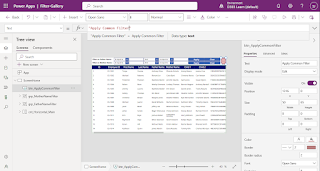
- Now, apply the below code on "OnSelect" property of this button.
UpdateContext({vrFilterCriteria1Key_FatherName:dd_FatherNameFilter1.SelectedText.Text});
UpdateContext({vrFilterCriteria1Value_FatherName:txt_FatherNameFilter1.Text});
UpdateContext({vrFilterJoinCondition_FatherName:dd_FatherNameFilterJoin.SelectedText.Text});
UpdateContext({vrFilterCriteria2Key_FatherName:dd_FatherNameFilter2.SelectedText.Text});
UpdateContext({vrFilterCriteria2Value_FatherName:txt_FatherNameFilter2.Text});
UpdateContext({vrIsFilterAppliedOn_FatherName:false});
ClearCollect(coll_Filter1_FatherName,[]);
ClearCollect(coll_Filter2_FatherName,[]);
ClearCollect(coll_FinalFilter_FatherName,[]);

//GET COLLECTION BASED UPON FATHERNAME FIRST FILTER CRITERIA
If(
    !IsBlank(vrFilterCriteria1Value_FatherName)
    ,UpdateContext({vrIsFilterAppliedOn_FatherName:true});
    If(
        Upper(vrFilterCriteria1Key_FatherName) = "IS EQUAL TO"
        ,ClearCollect(coll_Filter1_FatherName,Filter(coll_MasterData,Upper(Father) = Upper(vrFilterCriteria1Value_FatherName)));
        ,If(
            Upper(vrFilterCriteria1Key_FatherName) = "IS NOT EQUAL TO"
            ,ClearCollect(coll_Filter1_FatherName,Filter(coll_MasterData,Upper(Father) <> Upper(vrFilterCriteria1Value_FatherName)));
            ,If(
                Upper(vrFilterCriteria1Key_FatherName) = "STARTS WITH"
                ,ClearCollect(coll_Filter1_FatherName,Filter(coll_MasterData,StartsWith(Upper(Father), Upper(vrFilterCriteria1Value_FatherName))));
                ,If(
                    Upper(vrFilterCriteria1Key_FatherName) = "ENDS WITH"
                    ,ClearCollect(coll_Filter1_FatherName,Filter(coll_MasterData,EndsWith(Upper(Father), Upper(vrFilterCriteria1Value_FatherName))));
                    ,If(
                        Upper(vrFilterCriteria1Key_FatherName) = "CONTAINS"
                        ,ClearCollect(coll_Filter1_FatherName,Filter(coll_MasterData,Upper(vrFilterCriteria1Value_FatherName) in Upper(Father)));
                        ,If(
                            Upper(vrFilterCriteria1Key_FatherName) = "DOES NOT CONTAIN"
                            ,ClearCollect(coll_Filter1_FatherName,Filter(coll_MasterData,!(Upper(vrFilterCriteria1Value_FatherName) in Upper(Father))));
                        );
                    );
                );
            );
        );
    );
);

//GET COLLECTION BASED UPON FATHERNAME SECOND FILTER CRITERIA
If(
    !IsBlank(vrFilterCriteria2Value_FatherName)
    ,UpdateContext({vrIsFilterAppliedOn_FatherName:true});
    If(
        Upper(vrFilterCriteria2Key_FatherName) = "IS EQUAL TO"
        ,ClearCollect(coll_Filter2_FatherName,Filter(coll_MasterData,Upper(Father) = Upper(vrFilterCriteria2Value_FatherName)));
        ,If(
            Upper(vrFilterCriteria2Key_FatherName) = "IS NOT EQUAL TO"
            ,ClearCollect(coll_Filter2_FatherName,Filter(coll_MasterData,Upper(Father) <> Upper(vrFilterCriteria2Value_FatherName)));
            ,If(
                Upper(vrFilterCriteria2Key_FatherName) = "STARTS WITH"
                ,ClearCollect(coll_Filter2_FatherName,Filter(coll_MasterData,StartsWith(Upper(Father), Upper(vrFilterCriteria2Value_FatherName))));
                ,If(
                    Upper(vrFilterCriteria2Key_FatherName) = "ENDS WITH"
                    ,ClearCollect(coll_Filter2_FatherName,Filter(coll_MasterData,EndsWith(Upper(Father), Upper(vrFilterCriteria2Value_FatherName))));
                    ,If(
                        Upper(vrFilterCriteria2Key_FatherName) = "CONTAINS"
                        ,ClearCollect(coll_Filter2_FatherName,Filter(coll_MasterData,Upper(vrFilterCriteria2Value_FatherName) in Upper(Father)));
                        ,If(
                            Upper(vrFilterCriteria2Key_FatherName) = "DOES NOT CONTAIN"
                            ,ClearCollect(coll_Filter2_FatherName,Filter(coll_MasterData,!(Upper(vrFilterCriteria2Value_FatherName) in Upper(Father))));
                        );
                    );
                );
            );
        );
    );
);

// GET THE FINAL FILTER RESULT FOR FATHER NAME BASED UPON JOIN CONDITION
If(
    !IsBlank(vrFilterCriteria1Value_FatherName) && !IsBlank(vrFilterCriteria2Value_FatherName)
    ,If(
        Upper(vrFilterJoinCondition_FatherName) = "OR"
        ,ClearCollect(coll_FinalFilter_FatherName,coll_Filter2_FatherName);
        Collect(coll_FinalFilter_FatherName,Filter(coll_Filter1_FatherName, !(ID in coll_Filter2_FatherName.ID)));
        ,ClearCollect(coll_FinalFilter_FatherName,Filter(coll_Filter1_FatherName, ID in coll_Filter2_FatherName.ID));
    )
    ,If(
        !IsBlank(vrFilterCriteria2Value_FatherName)
        ,ClearCollect(coll_FinalFilter_FatherName,coll_Filter2_FatherName);
        ,If(
            !IsBlank(vrFilterCriteria1Value_FatherName)
            ,ClearCollect(coll_FinalFilter_FatherName,coll_Filter1_FatherName);
            ,ClearCollect(coll_FinalFilter_FatherName,coll_MasterData);
        )
    )
);


//********************************************************************************************************//

UpdateContext({vrFilterCriteria1Key_MotherName:dd_MotherNameFilter1.SelectedText.Text});
UpdateContext({vrFilterCriteria1Value_MotherName:txt_MotherNameFilter1.Text});
UpdateContext({vrFilterJoinCondition_MotherName:dd_MotherNameFilterJoin.SelectedText.Text});
UpdateContext({vrFilterCriteria2Key_MotherName:dd_MotherNameFilter2.SelectedText.Text});
UpdateContext({vrFilterCriteria2Value_MotherName:txt_MotherNameFilter2.Text});
UpdateContext({vrIsFilterAppliedOn_MotherName:false});
ClearCollect(coll_Filter1_MotherName,[]);
ClearCollect(coll_Filter2_MotherName,[]);
ClearCollect(coll_FinalFilter_MotherName,[]);

//GET COLLECTION BASED UPON MotherNAME FIRST FILTER CRITERIA
If(
    !IsBlank(vrFilterCriteria1Value_MotherName)
    ,UpdateContext({vrIsFilterAppliedOn_MotherName:true});
    If(
        Upper(vrFilterCriteria1Key_MotherName) = "IS EQUAL TO"
        ,ClearCollect(coll_Filter1_MotherName,Filter(coll_MasterData,Upper(Mother) = Upper(vrFilterCriteria1Value_MotherName)));
        ,If(
            Upper(vrFilterCriteria1Key_MotherName) = "IS NOT EQUAL TO"
            ,ClearCollect(coll_Filter1_MotherName,Filter(coll_MasterData,Upper(Mother) <> Upper(vrFilterCriteria1Value_MotherName)));
            ,If(
                Upper(vrFilterCriteria1Key_MotherName) = "STARTS WITH"
                ,ClearCollect(coll_Filter1_MotherName,Filter(coll_MasterData,StartsWith(Upper(Mother), Upper(vrFilterCriteria1Value_MotherName))));
                ,If(
                    Upper(vrFilterCriteria1Key_MotherName) = "ENDS WITH"
                    ,ClearCollect(coll_Filter1_MotherName,Filter(coll_MasterData,EndsWith(Upper(Mother), Upper(vrFilterCriteria1Value_MotherName))));
                    ,If(
                        Upper(vrFilterCriteria1Key_MotherName) = "CONTAINS"
                        ,ClearCollect(coll_Filter1_MotherName,Filter(coll_MasterData,Upper(vrFilterCriteria1Value_MotherName) in Upper(Mother)));
                        ,If(
                            Upper(vrFilterCriteria1Key_MotherName) = "DOES NOT CONTAIN"
                            ,ClearCollect(coll_Filter1_MotherName,Filter(coll_MasterData,!(Upper(vrFilterCriteria1Value_MotherName) in Upper(Mother))));
                        );
                    );
                );
            );
        );
    );
);

//GET COLLECTION BASED UPON MotherNAME SECOND FILTER CRITERIA
If(
    !IsBlank(vrFilterCriteria2Value_MotherName)
    ,UpdateContext({vrIsFilterAppliedOn_MotherName:true});
    If(
        Upper(vrFilterCriteria2Key_MotherName) = "IS EQUAL TO"
        ,ClearCollect(coll_Filter2_MotherName,Filter(coll_MasterData,Upper(Mother) = Upper(vrFilterCriteria2Value_MotherName)));
        ,If(
            Upper(vrFilterCriteria2Key_MotherName) = "IS NOT EQUAL TO"
            ,ClearCollect(coll_Filter2_MotherName,Filter(coll_MasterData,Upper(Mother) <> Upper(vrFilterCriteria2Value_MotherName)));
            ,If(
                Upper(vrFilterCriteria2Key_MotherName) = "STARTS WITH"
                ,ClearCollect(coll_Filter2_MotherName,Filter(coll_MasterData,StartsWith(Upper(Mother), Upper(vrFilterCriteria2Value_MotherName))));
                ,If(
                    Upper(vrFilterCriteria2Key_MotherName) = "ENDS WITH"
                    ,ClearCollect(coll_Filter2_MotherName,Filter(coll_MasterData,EndsWith(Upper(Mother), Upper(vrFilterCriteria2Value_MotherName))));
                    ,If(
                        Upper(vrFilterCriteria2Key_MotherName) = "CONTAINS"
                        ,ClearCollect(coll_Filter2_MotherName,Filter(coll_MasterData,Upper(vrFilterCriteria2Value_MotherName) in Upper(Mother)));
                        ,If(
                            Upper(vrFilterCriteria2Key_MotherName) = "DOES NOT CONTAIN"
                            ,ClearCollect(coll_Filter2_MotherName,Filter(coll_MasterData,!(Upper(vrFilterCriteria2Value_MotherName) in Upper(Mother))));
                        );
                    );
                );
            );
        );
    );
);

// GET THE FINAL FILTER RESULT FOR Mother NAME BASED UPON JOIN CONDITION
If(
    !IsBlank(vrFilterCriteria1Value_MotherName) && !IsBlank(vrFilterCriteria2Value_MotherName)
    ,If(
        Upper(vrFilterJoinCondition_MotherName) = "OR"
        ,ClearCollect(coll_FinalFilter_MotherName,coll_Filter2_MotherName);
        Collect(coll_FinalFilter_MotherName,Filter(coll_Filter1_MotherName, !(ID in coll_Filter2_MotherName.ID)));
        ,ClearCollect(coll_FinalFilter_MotherName,Filter(coll_Filter1_MotherName, ID in coll_Filter2_MotherName.ID));
    )
    ,If(
        !IsBlank(vrFilterCriteria2Value_MotherName)
        ,ClearCollect(coll_FinalFilter_MotherName,coll_Filter2_MotherName);
        ,If(
            !IsBlank(vrFilterCriteria1Value_MotherName)
            ,ClearCollect(coll_FinalFilter_MotherName,coll_Filter1_MotherName);
            ,ClearCollect(coll_FinalFilter_MotherName,coll_MasterData);
        )
    )
);

//********************************************************************************************************//

// FINAL RESULT BASED UPON ALL COLUMNS AND FILTERS

If(
    vrIsFilterAppliedOn_FatherName && vrIsFilterAppliedOn_MotherName
    ,ClearCollect(coll_FinalData,Filter(coll_FinalFilter_FatherName,ID in coll_FinalFilter_MotherName.ID));
    ,If(
        vrIsFilterAppliedOn_FatherName
        ,ClearCollect(coll_FinalData,coll_FinalFilter_FatherName)
        ,If(
            vrIsFilterAppliedOn_MotherName
            ,ClearCollect(coll_FinalData,coll_FinalFilter_MotherName)
            ,ClearCollect(coll_FinalData,coll_MasterData)
        );
    );
);
- Just to clarify, it contains 3 section. The first section contains code for FatherName. The second section is replica of first section for the MotherName. we had just replaced Father with Mother. (or whatever be the column name you are going to apply the filter). The third section is the merging the result of both sections to one final result. Always remember to write code in such a way that if you have to make a replica of that code for other section/column, you have to do minimum rework. Here, I just replaced Father by Mother and it worked.
- Now, add the below code on "OnSelect" property of buttons - "btn_FatherNameFilter_Apply" & "btn_MotherNameFilter_Apply".
Select(btn_ApplyCommonFilter)- Add below code on "OnSelect" property of "btn_FatherNameFilter_Clear"-
Reset(dd_FatherNameFilter1);
Reset(txt_FatherNameFilter1);
Reset(dd_FatherNameFilterJoin);
Reset(dd_FatherNameFilter2);
Reset(txt_FatherNameFilter2);
Select(btn_ApplyCommonFilter);
- Similary add below code on "OnSelect" property of "btn_MotherNameFilter_Clear"
Reset(dd_MotherNameFilter1);
Reset(txt_MotherNameFilter1);
Reset(dd_MotherNameFilterJoin);
Reset(dd_MotherNameFilter2);
Reset(txt_MotherNameFilter2);
Select(btn_ApplyCommonFilter);
- Lastly, set the "Visible" property of button "btn_ApplyCommonFilter" as false.
- Now, save the app, publish and Run.

- First I will filter the data where FatherName StartsWith "a"

- Now, I will add the filter for MotherName where it should EndsWith "s".


- If I say, I want records where FatherName should either StartsWtih "ric" OR StartsWith "ant".

- This way, you may apply filters on more columns as well.
- A typical UI example of above filter box, I had applied in one of the application-


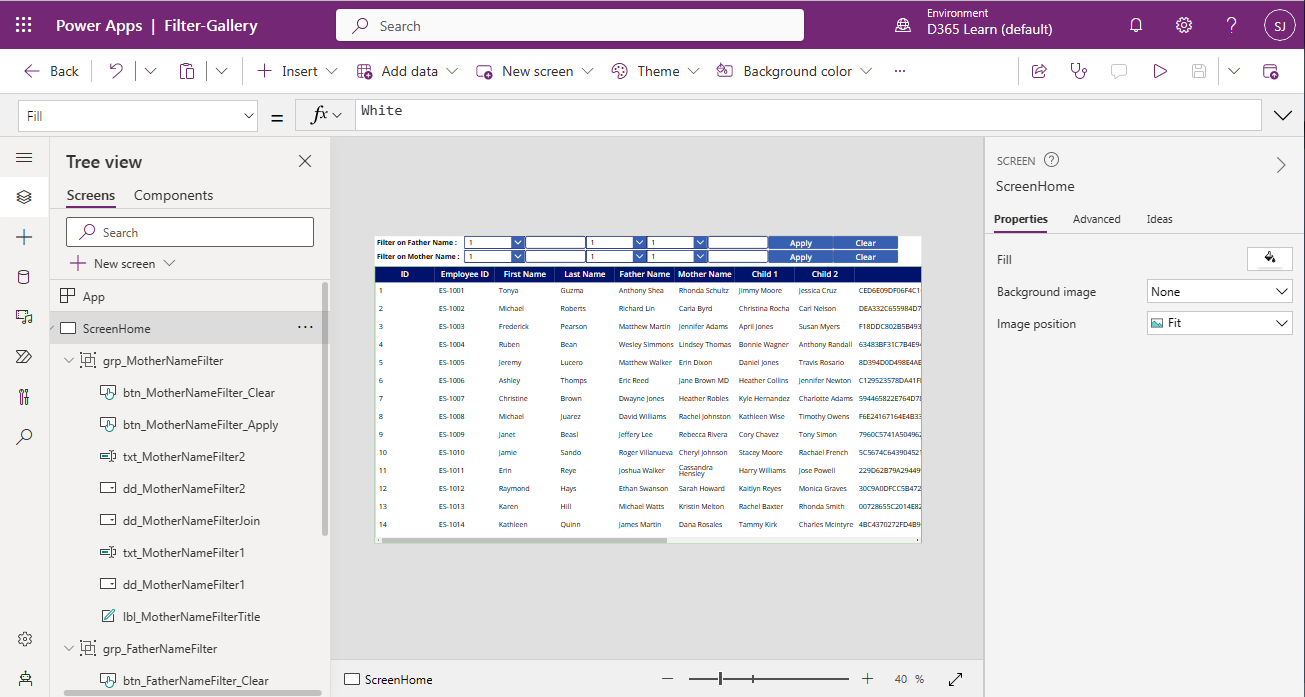


With this, I am concluding this post.
Happy Coding !!!
Will see you again with some new topics.
Stay Safe !
Stay Healthy !


